Charles Installation and Usage Guide
Introduction to Charles
What is Charles
Charles is a commonly used network packet capture tool for PC. It is essentially an HTTP protocol-based proxy server. By setting itself as the system's (computer or browser) network access proxy server, it intercepts requests and responses to achieve packet analysis. The software is written in Java and can be used on Windows, Mac, and Linux.
How Charles Works
Prerequisites
- Charles must be running with proxy configured
- The client must have proxy settings configured
Steps
- The client sends a request;
- Charles receives it and forwards it to the server;
- The server returns the response to Charles;
- Charles forwards it to the client.
Main Features of Charles
- Capture HTTP and HTTPS requests and responses
- Support resending network requests for backend debugging
- Support modifying network request parameters
- Support intercepting and dynamically modifying network requests (breakpoint debugging)
- Support simulating slow networks (throttling), mainly for simulating 2G/3G/4G mobile access
Charles Installation and Configuration
Installing Charles
Charles official website: http://www.charlesproxy.com- Download the appropriate version for your operating system
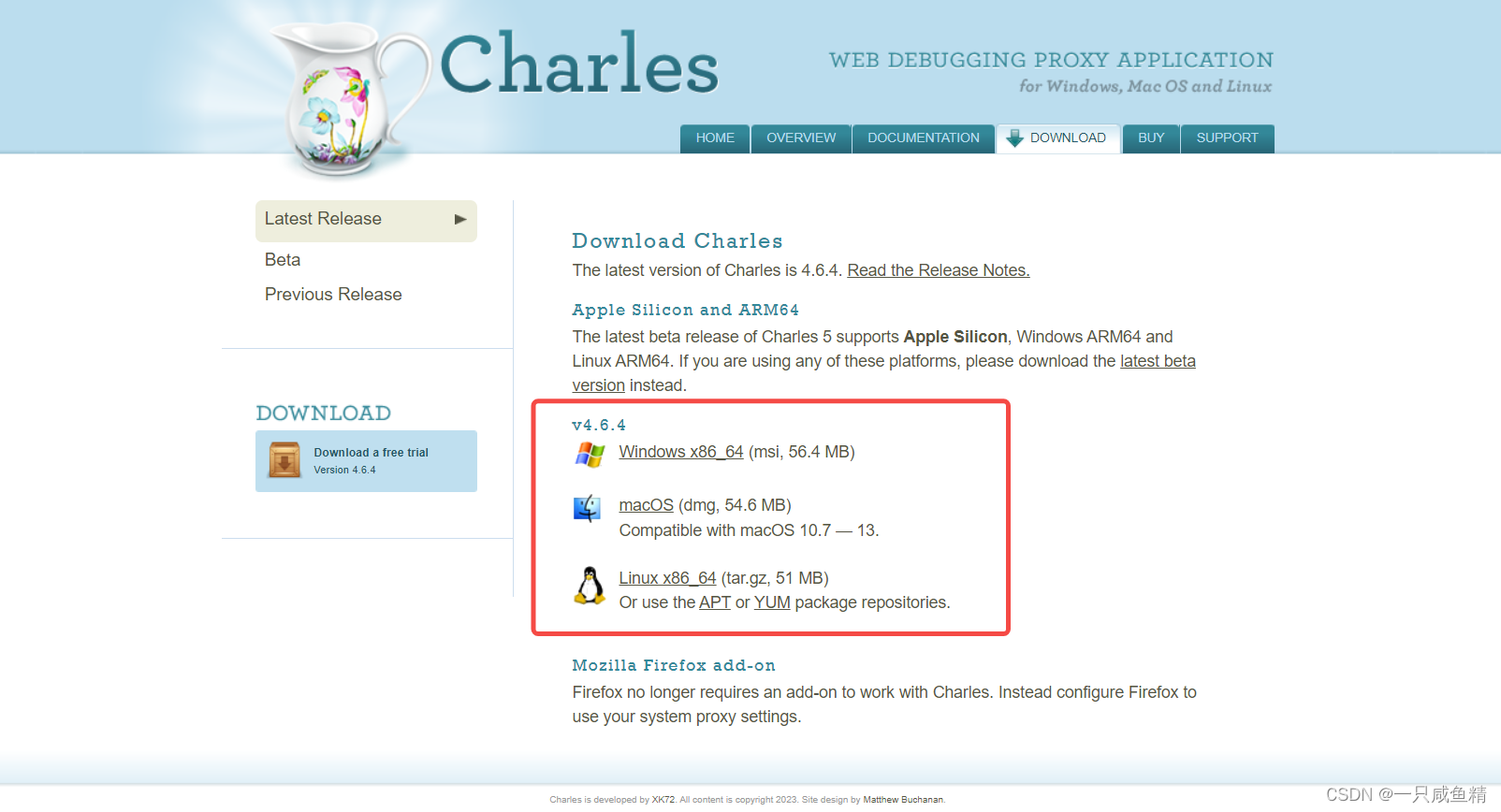
Note: For Windows installation, after downloading Charles, open the installer and follow the prompts to complete the installation.

For Mac, open the installation package and drag Charles to the Applications directory.
Charles Interface
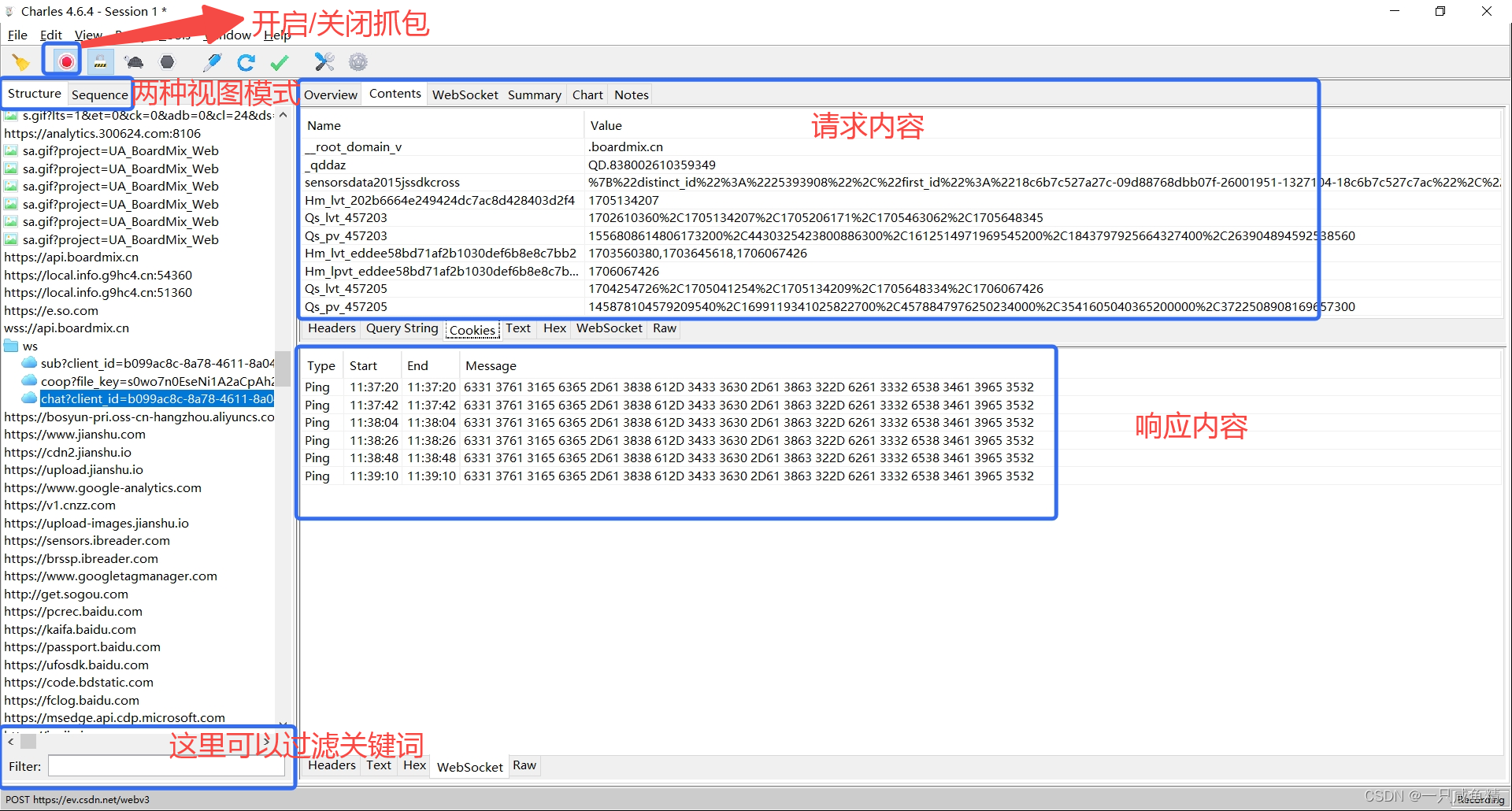
Capturing HTTP Traffic on PC
> After launching Charles, it will automatically set itself as the browser's proxy, requiring no additional configuration. When browsing web pages through the PC browser, the browser sends network requests and receives responses, and Charles will directly capture this request and response information.
Capturing HTTPS Traffic on PC
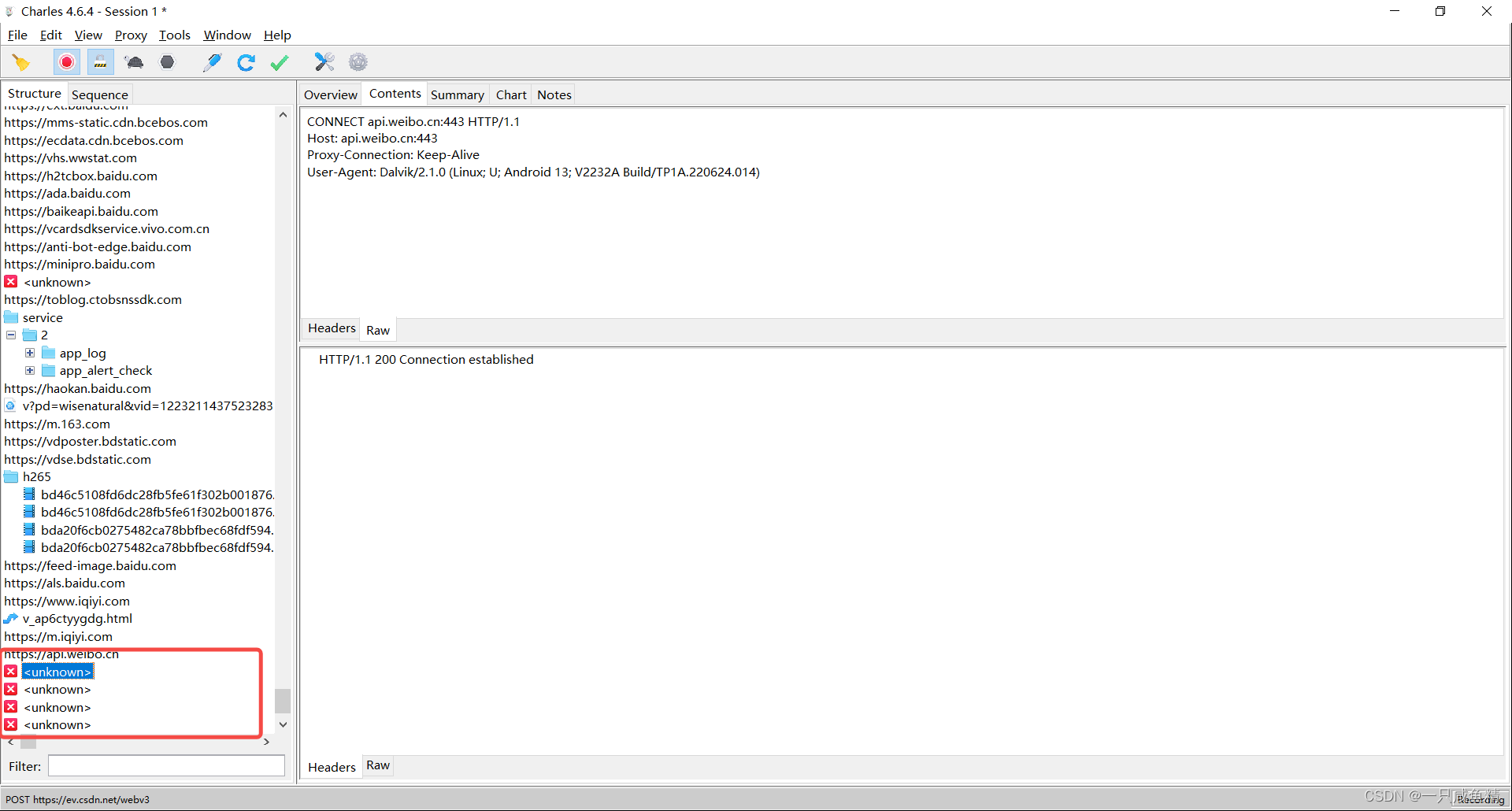
HTTPS packets cannot be displayed normally and will show as "unknown". An SSL certificate must be installed to capture them.
Steps to Install SSL Certificate:
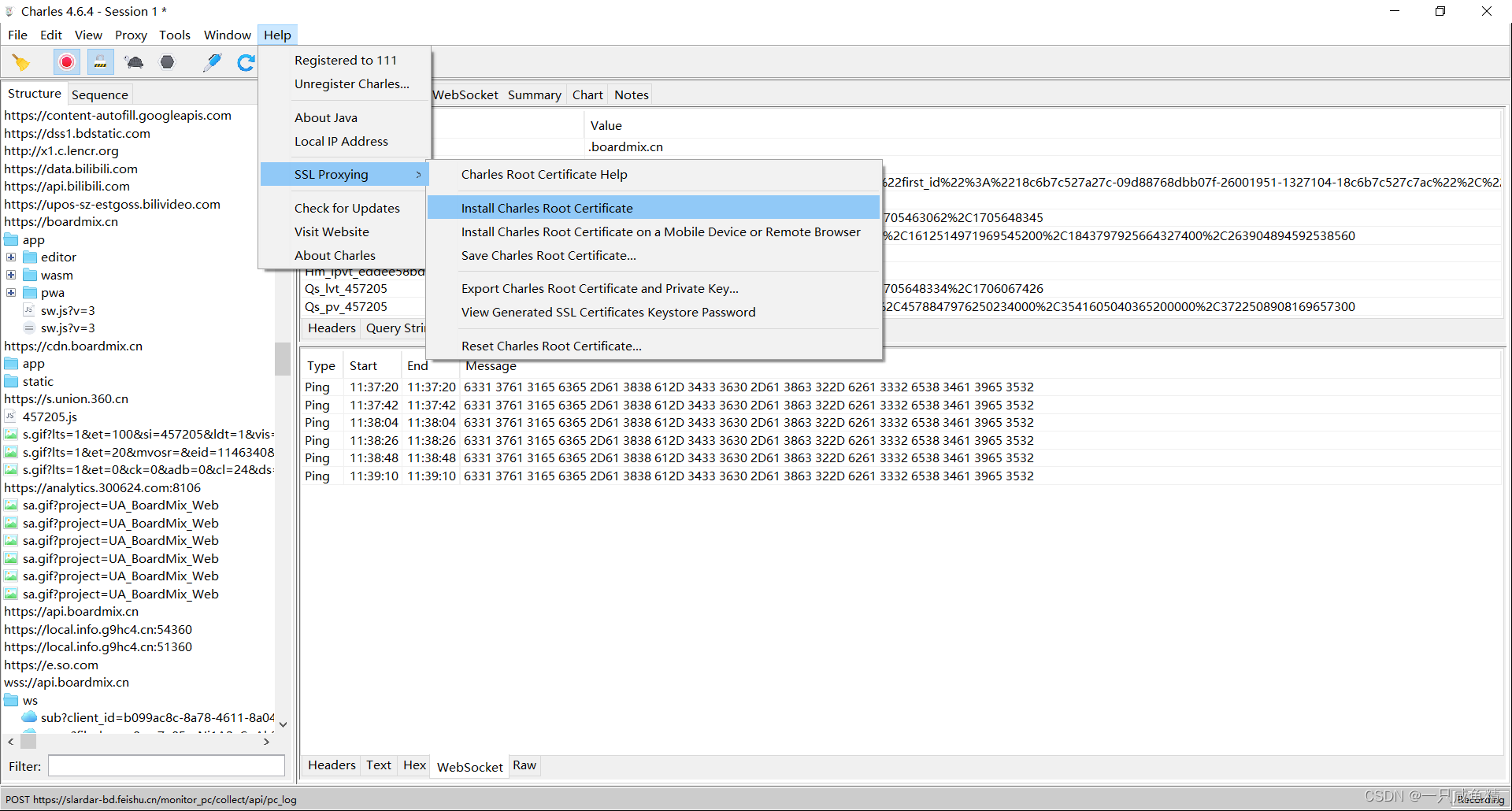
- Click the top menu bar Help -> select SSL Proxying -> click Install Charles Root Certificate to install the Charles root certificate (follow the prompts to complete installation).
- Click Proxy -> SSL Proxying Settings...
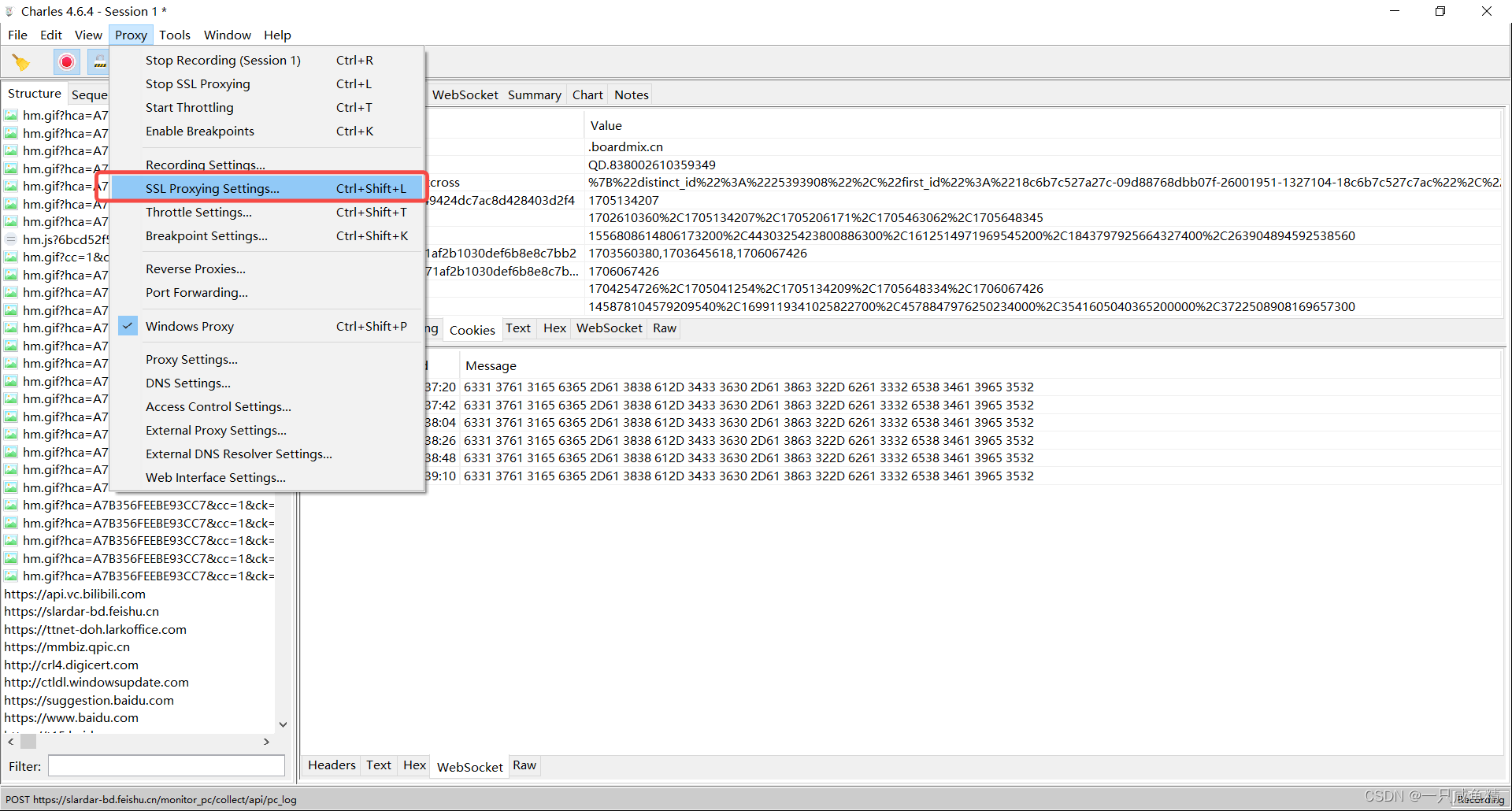
- In the pop-up tab, check Enable SSL Proxying, click Add, enter * in the Host field to accept any host, enter 443 in the Port field, and click OK to save.

After completing the above steps, the Charles HTTPS packet capture configuration is complete.
Capturing HTTP/HTTPS Traffic from Mobile Apps
Charles can capture HTTP/HTTPS requests from mobile apps.
To capture mobile traffic, you need to configure the computer, and both the phone and computer must be on the same network, i.e., connected to the same WiFi.
Computer Configuration:
- Launch Charles on the computer;
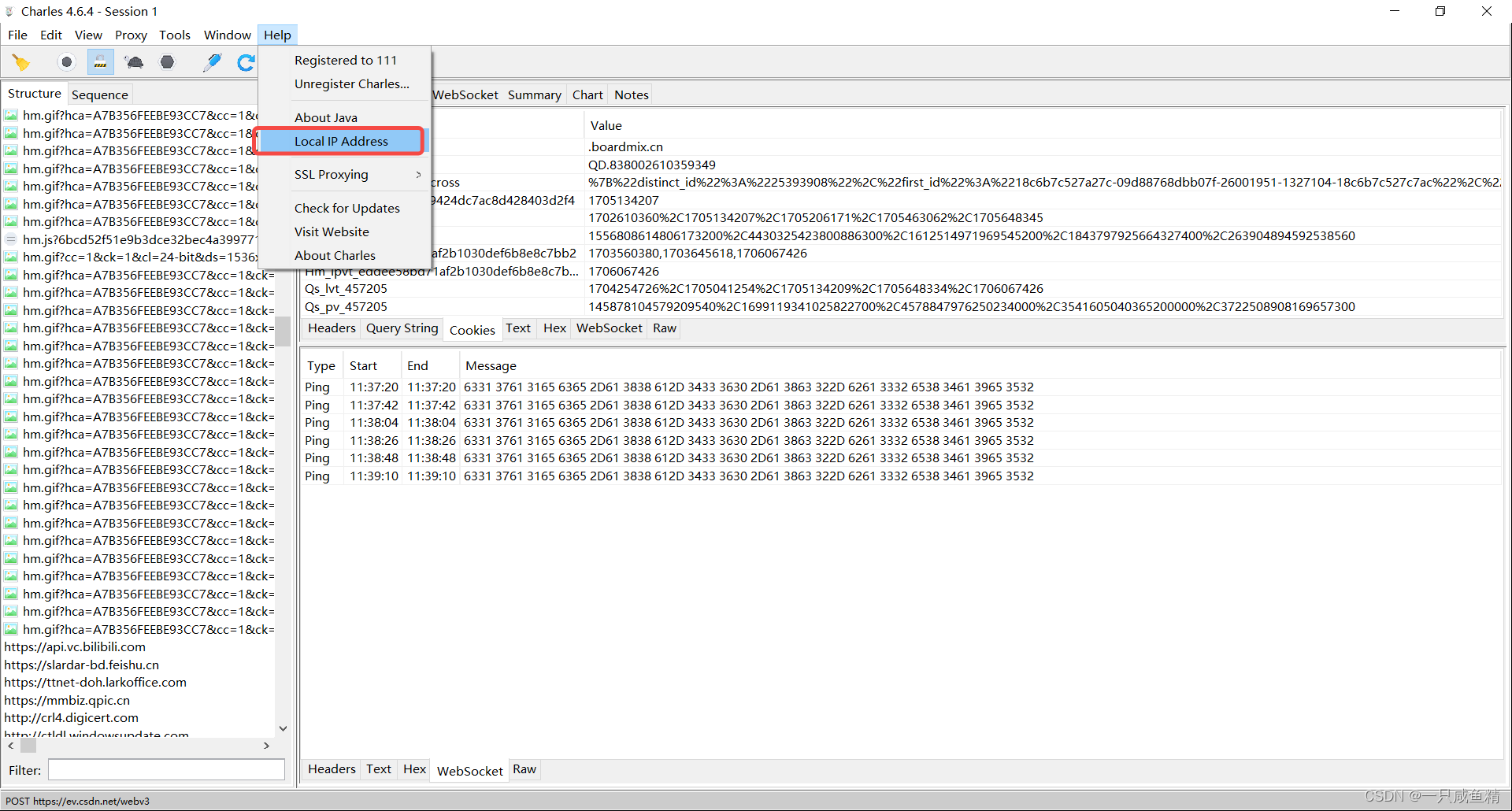
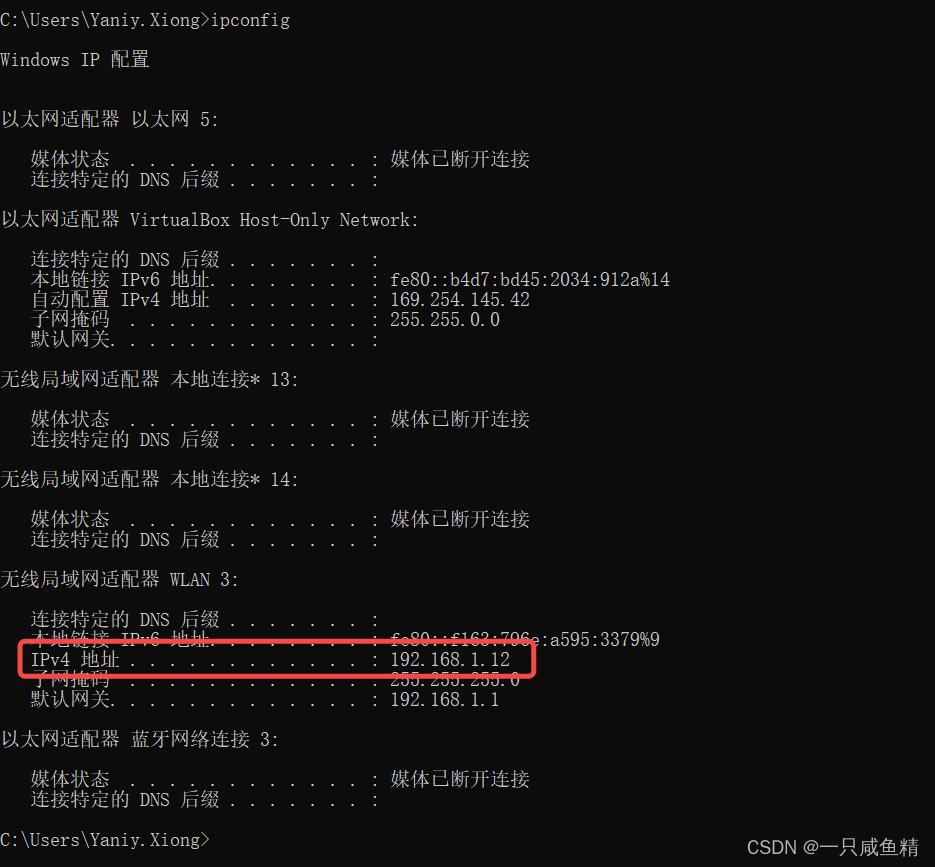
- Click Help -> Local IP Address to get the IP address. (You can also use the CMD command ipconfig to get the computer's IP address.)
Method 1:
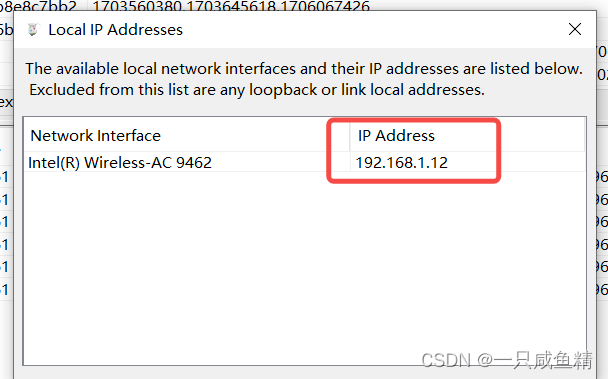
Method 2:
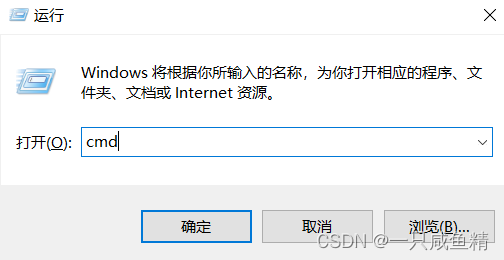
Open "Run" (shortcut: Win+R; or search for "Run" in the taskbar search), type "cmd" to open the command line window, then type "ipconfig" to view the IP address.
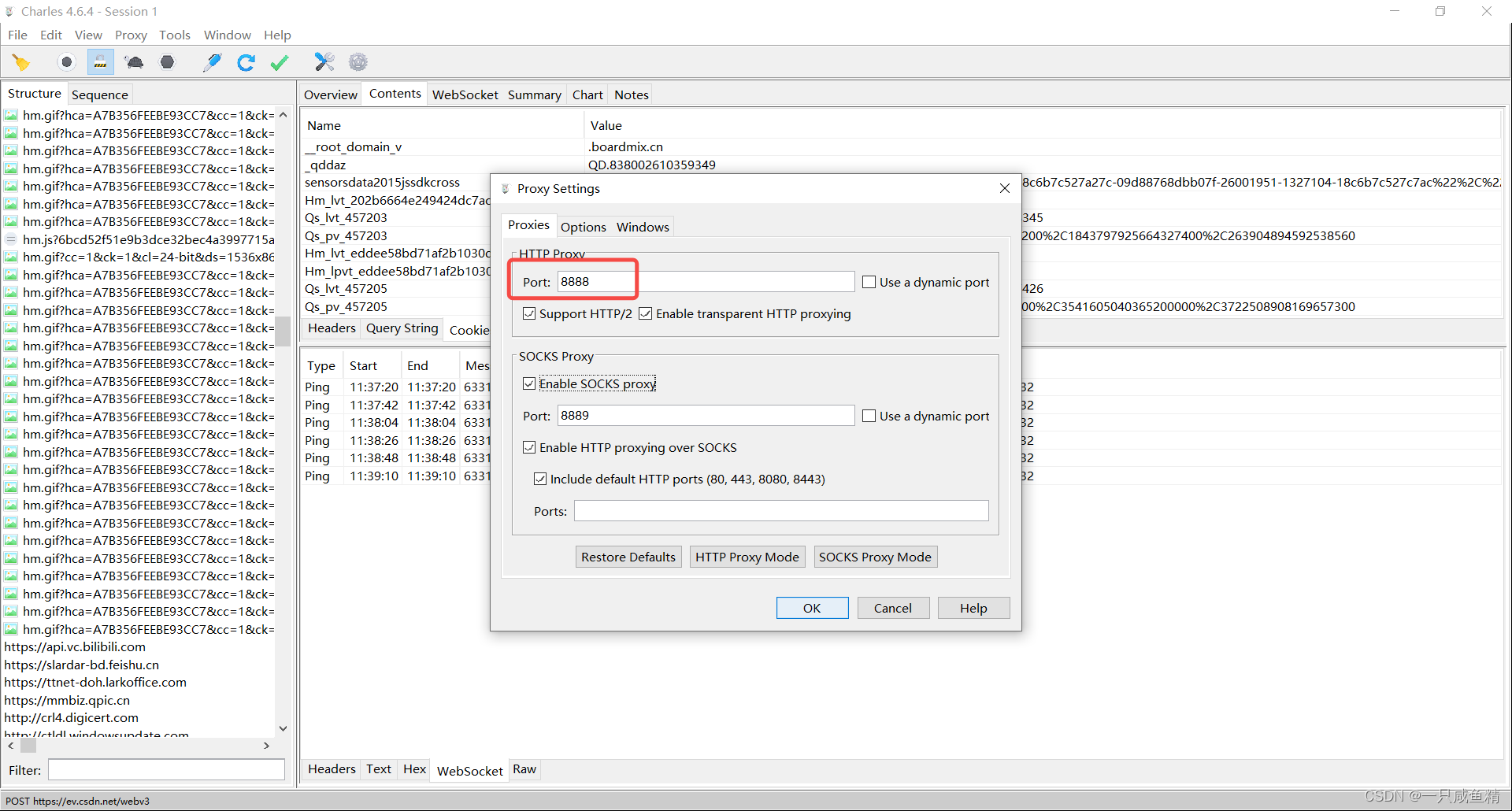
- Click Proxy -> Proxy Settings..., set the HTTP proxy port to "9999" (default is "8888"; just ensure it doesn't conflict with other programs).
Mobile Device Configuration:
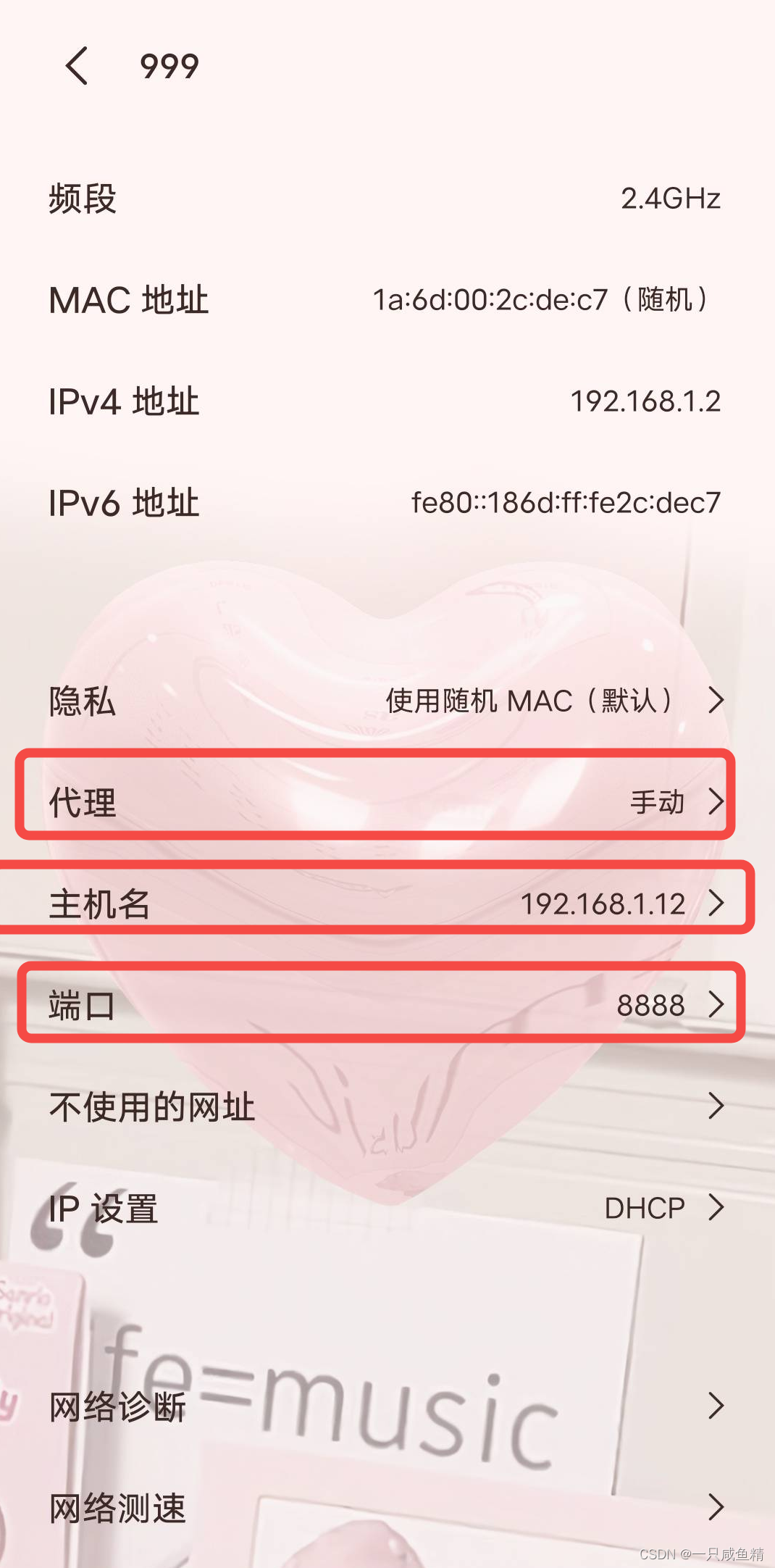
- Open the phone's Settings;
- Select Wireless & Networks;
- Select WLAN;
- Tap the WiFi network to enter its details;
- Tap Proxy and select Manual;
- Enter the computer's IP address (e.g., 192.168.1.12) and port 8888 — configure according to your setup;
- Tap Save;
When Charles on the computer shows a connection request, click Allow.
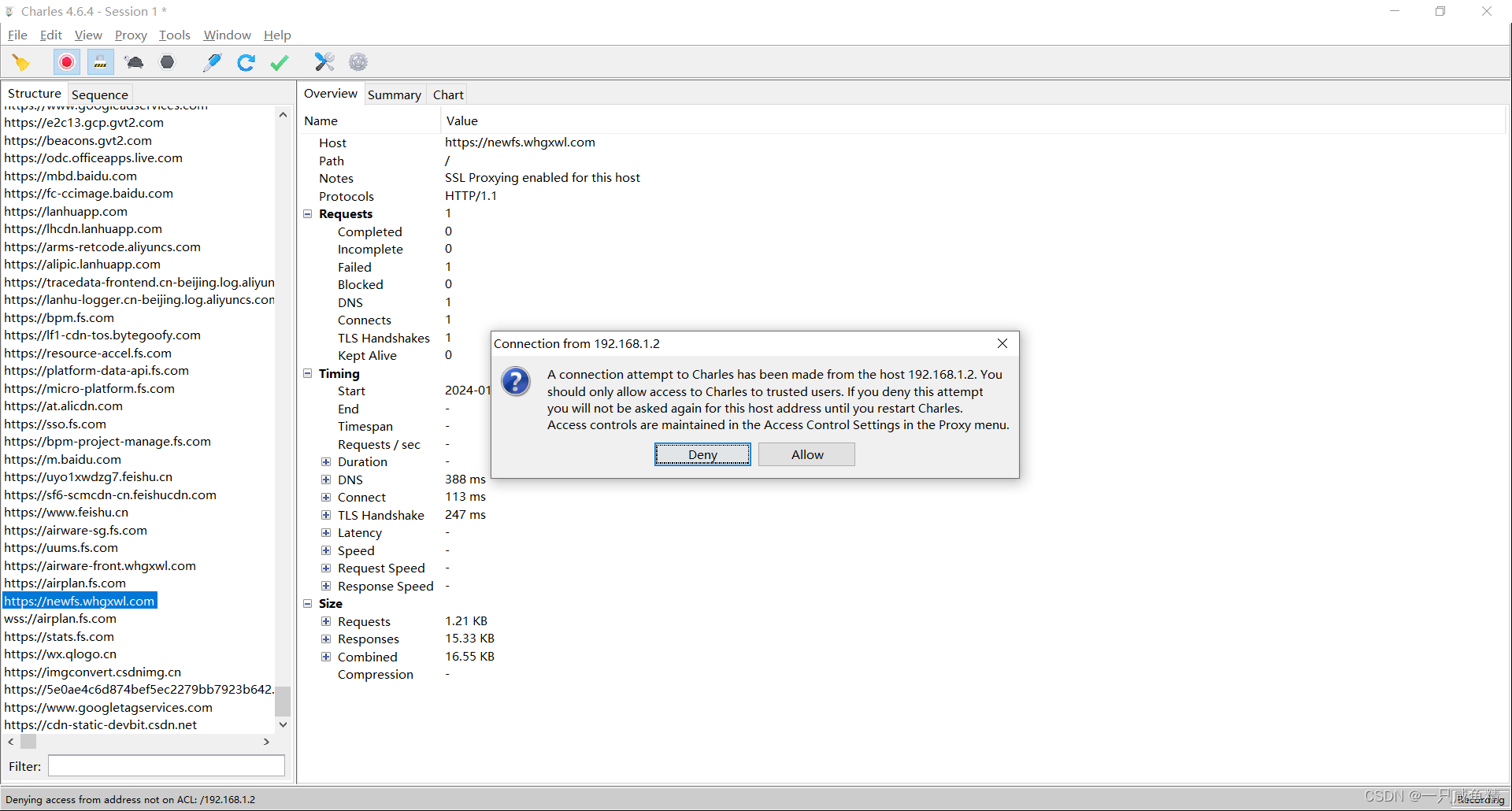
Now verify the mobile requests. Open a mobile app or mobile browser. If you can see the connections being captured in Charles, the configuration is correct.
If you see "unknown", it's because the mobile HTTPS certificate hasn't been installed yet. Follow the steps below to install the mobile HTTPS certificate.
Installing Mobile HTTPS Certificate
- Click the top menu bar Help -> select SSL Proxying -> click Install Charles Root Certificate on a Mobile Device or Remote Browser
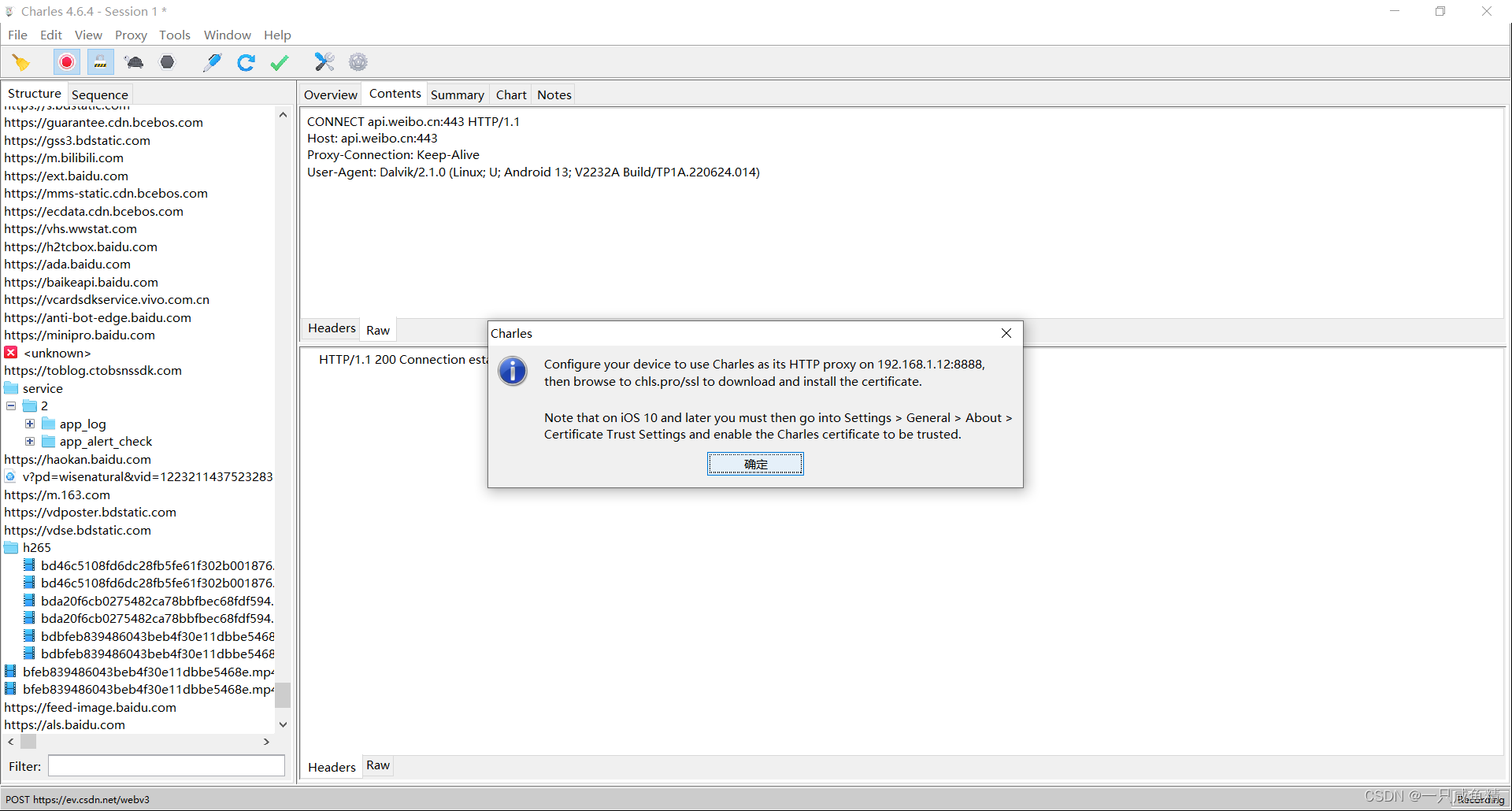
This means: after setting up the proxy on your phone, visit chls.pro/ssl in the mobile browser to download and install the certificate.
Simulating Slow Networks
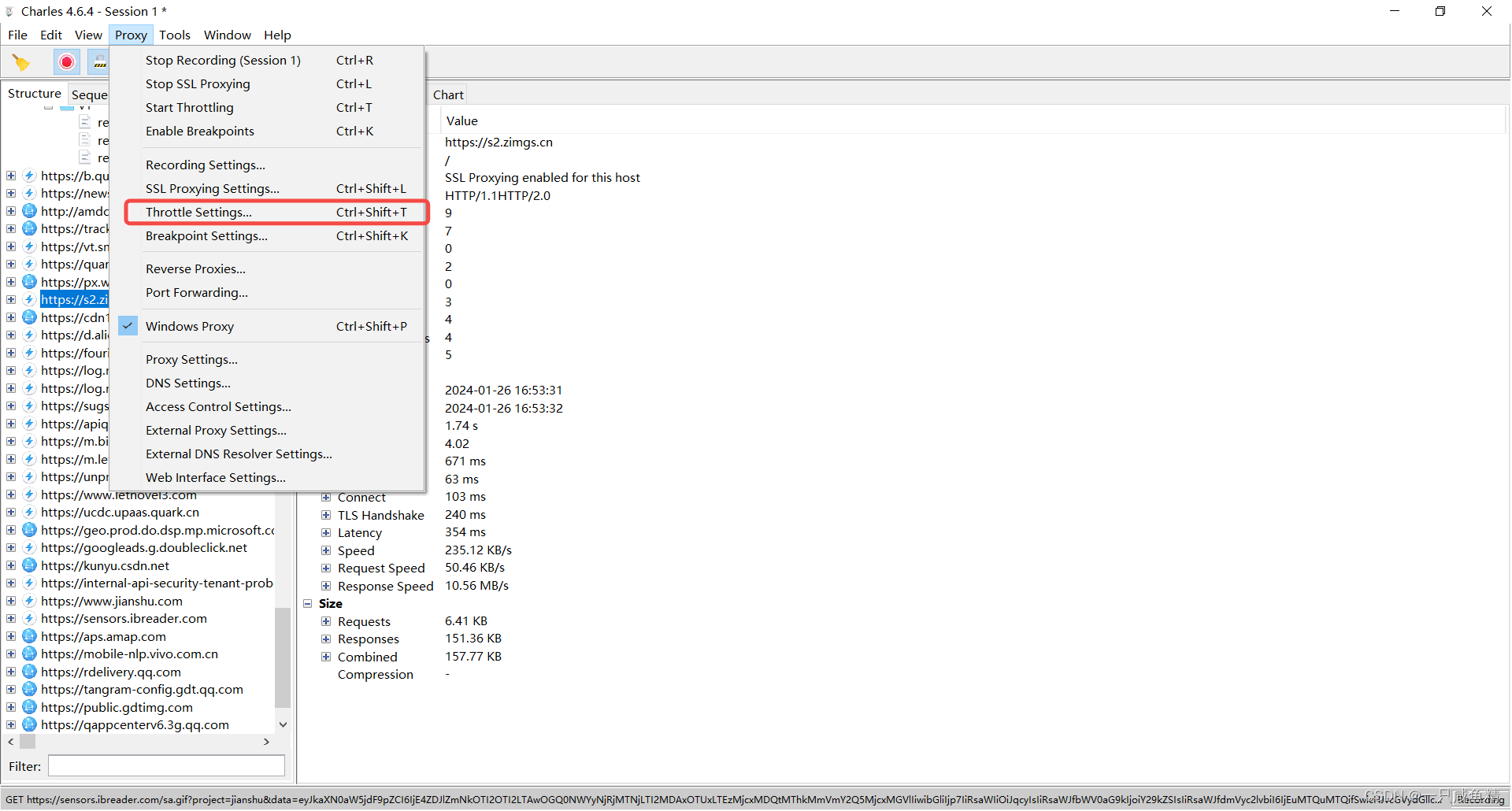
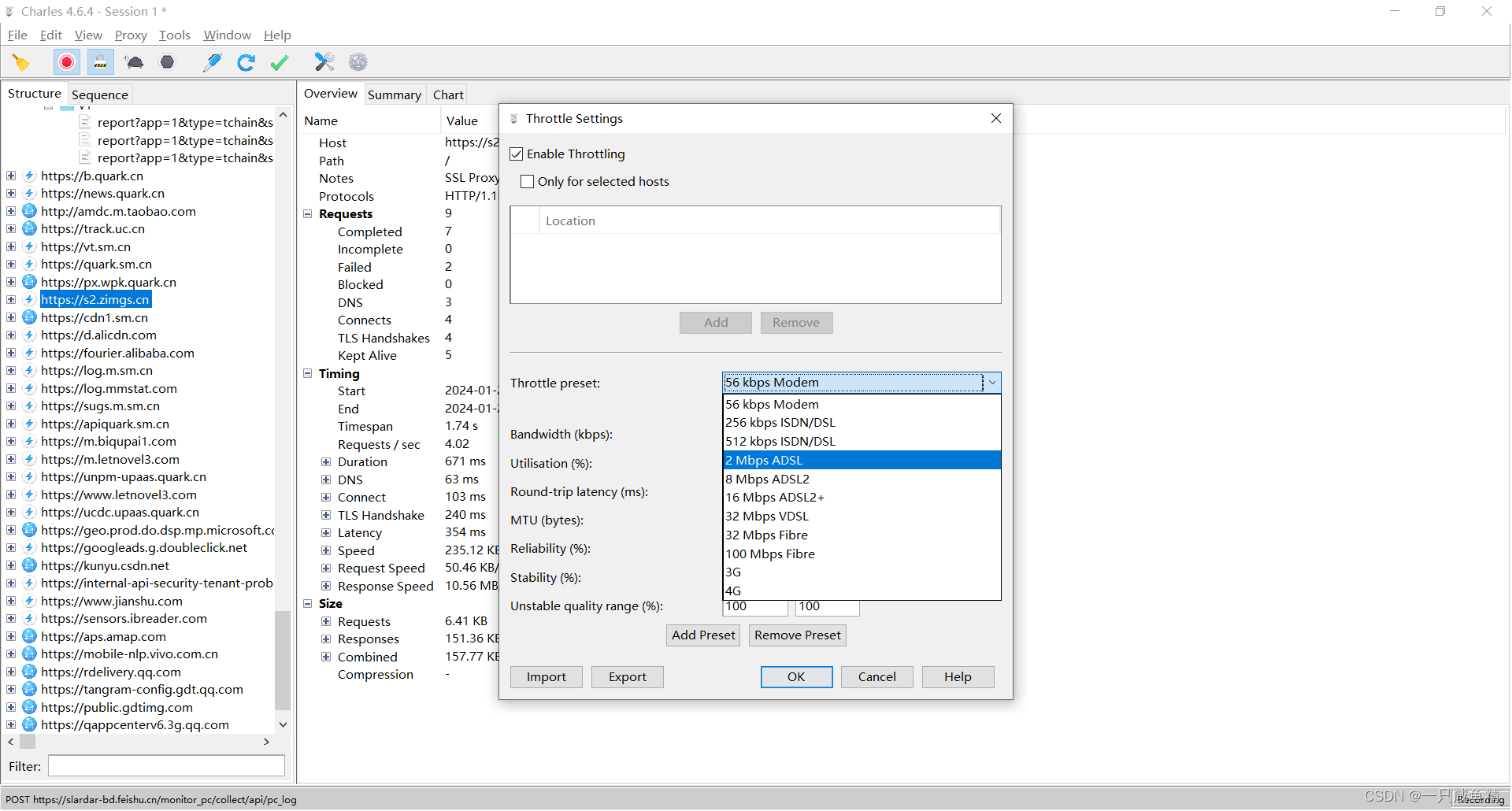
In the Charles menu, select "Proxy" -> "Throttle Setting". In the dialog that appears, check "Enable Throttling" and select the Throttle Preset type: