Cold Wallet User Manual - Bluetooth Version
1. Registration and Login
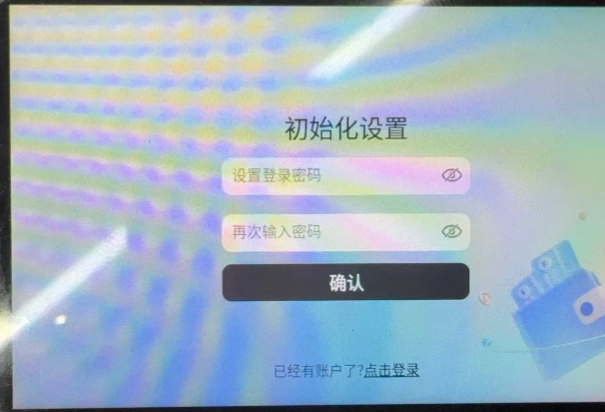
> When entering the app for the first time, set a login password and click Confirm to enter the system.
2. Authorization
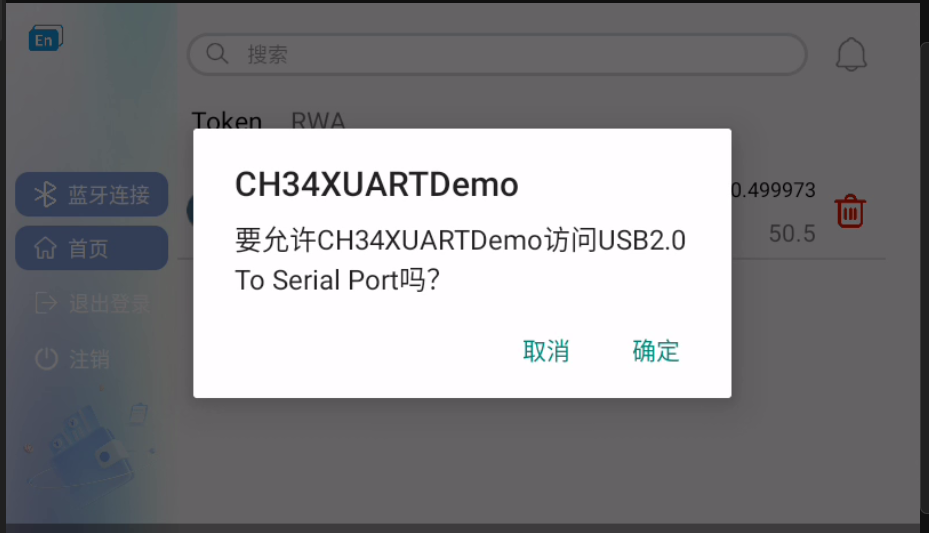
> After entering the system, you need to manually grant Bluetooth authorization.
3. System Usage Time Settings
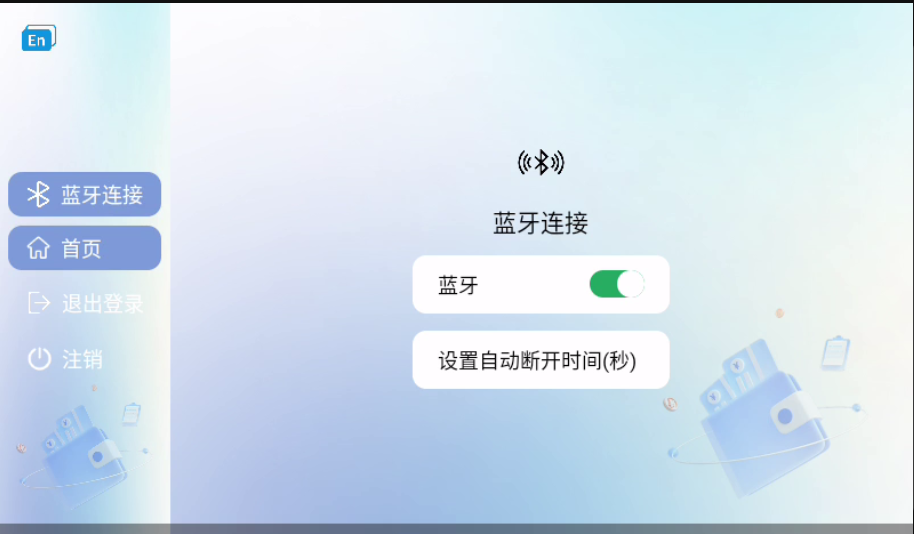
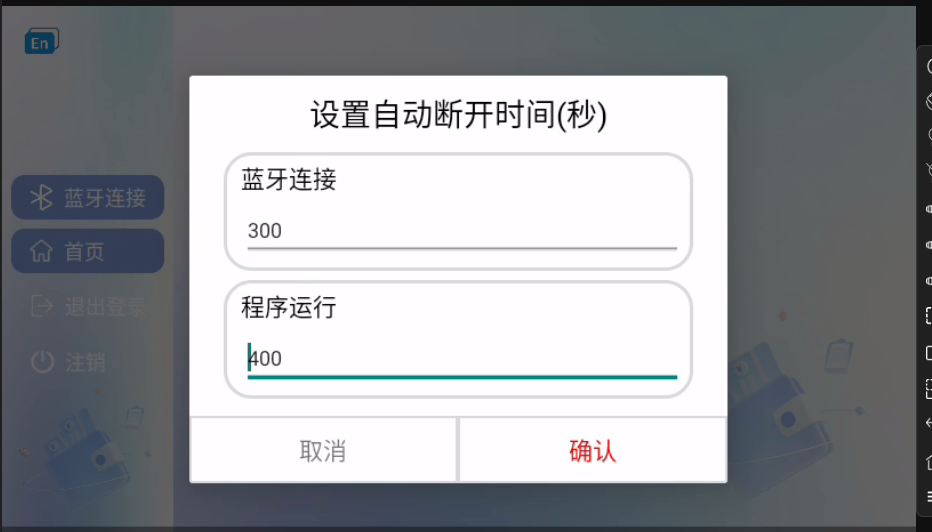
The default Bluetooth disconnect time is 30 seconds. If no operation is performed for more than 30 seconds, the system will automatically disconnect Bluetooth.
The default system close time is 40 seconds. If no operation is performed for more than 40 seconds, the system will automatically return to the login page.
These times can be manually configured, with a maximum of 1 hour (3600s).
After Bluetooth disconnects, you can manually tap the Bluetooth button to reconnect.
4. Bluetooth Connection and Usage
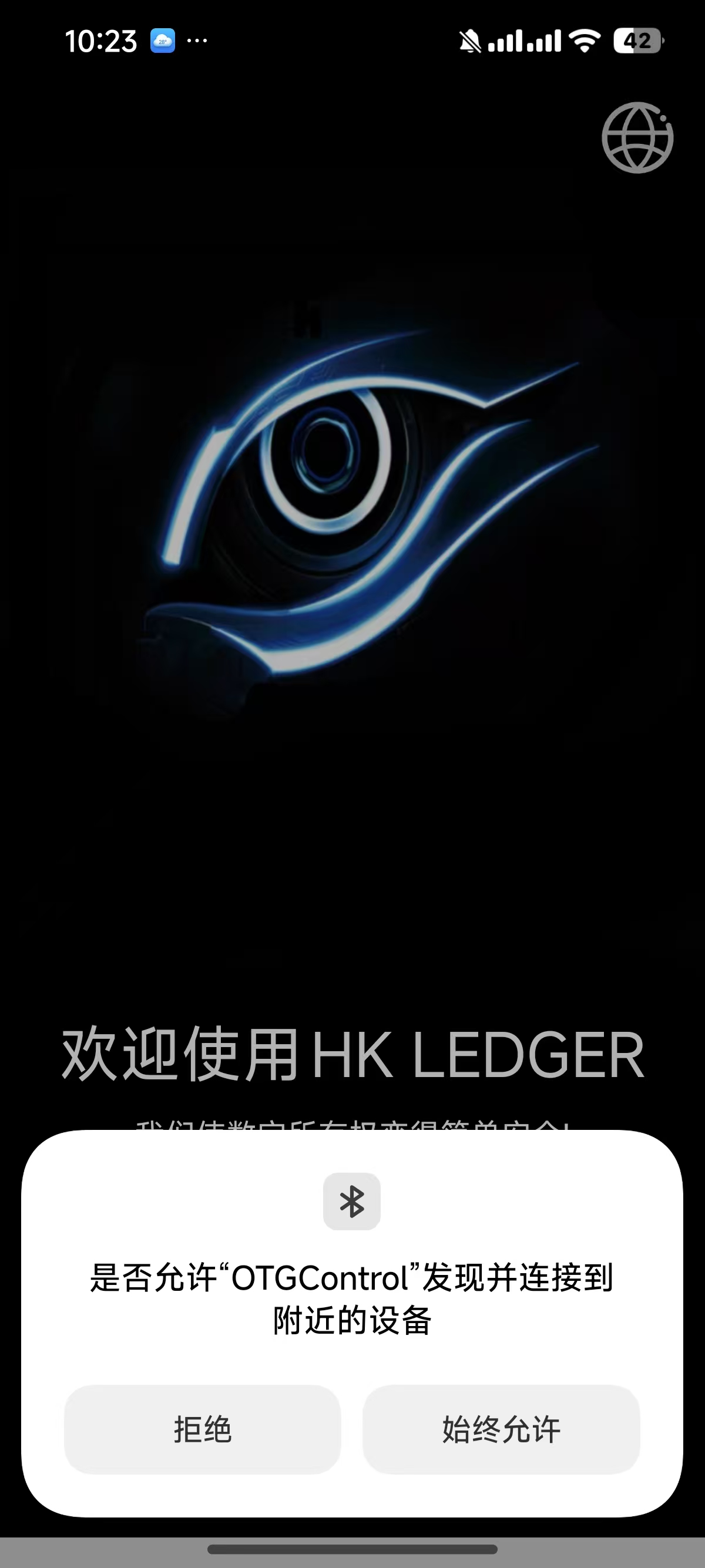
Open the OTGControl app on your phone and grant authorization.
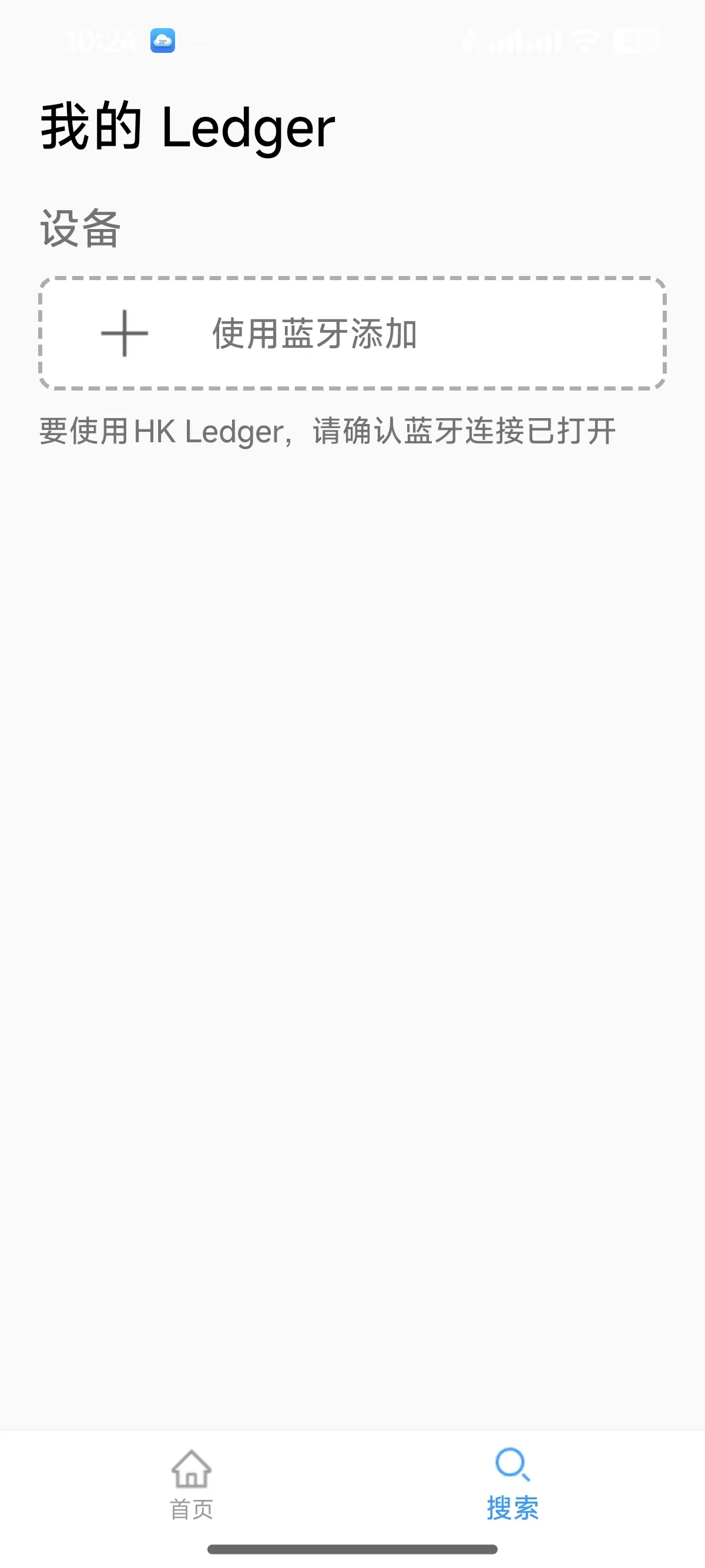
Tap Search -> Add via Bluetooth
Bring the Bluetooth device close to your phone, then select the nearest Bluetooth device on your phone to connect.
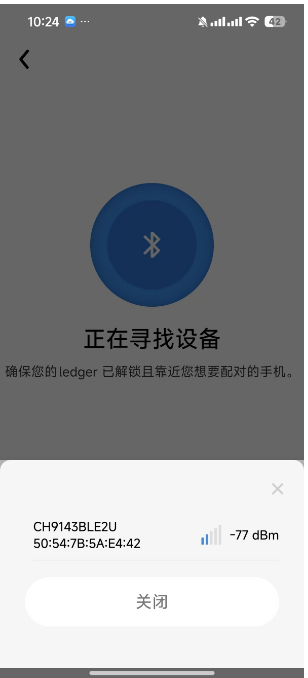
If no Bluetooth device is found on your phone, please re-enable Bluetooth on the Bluetooth device.
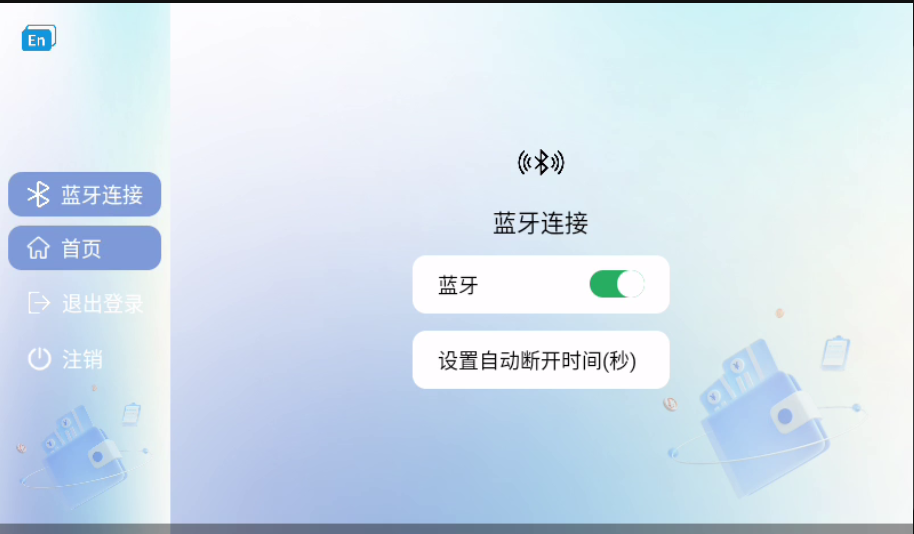
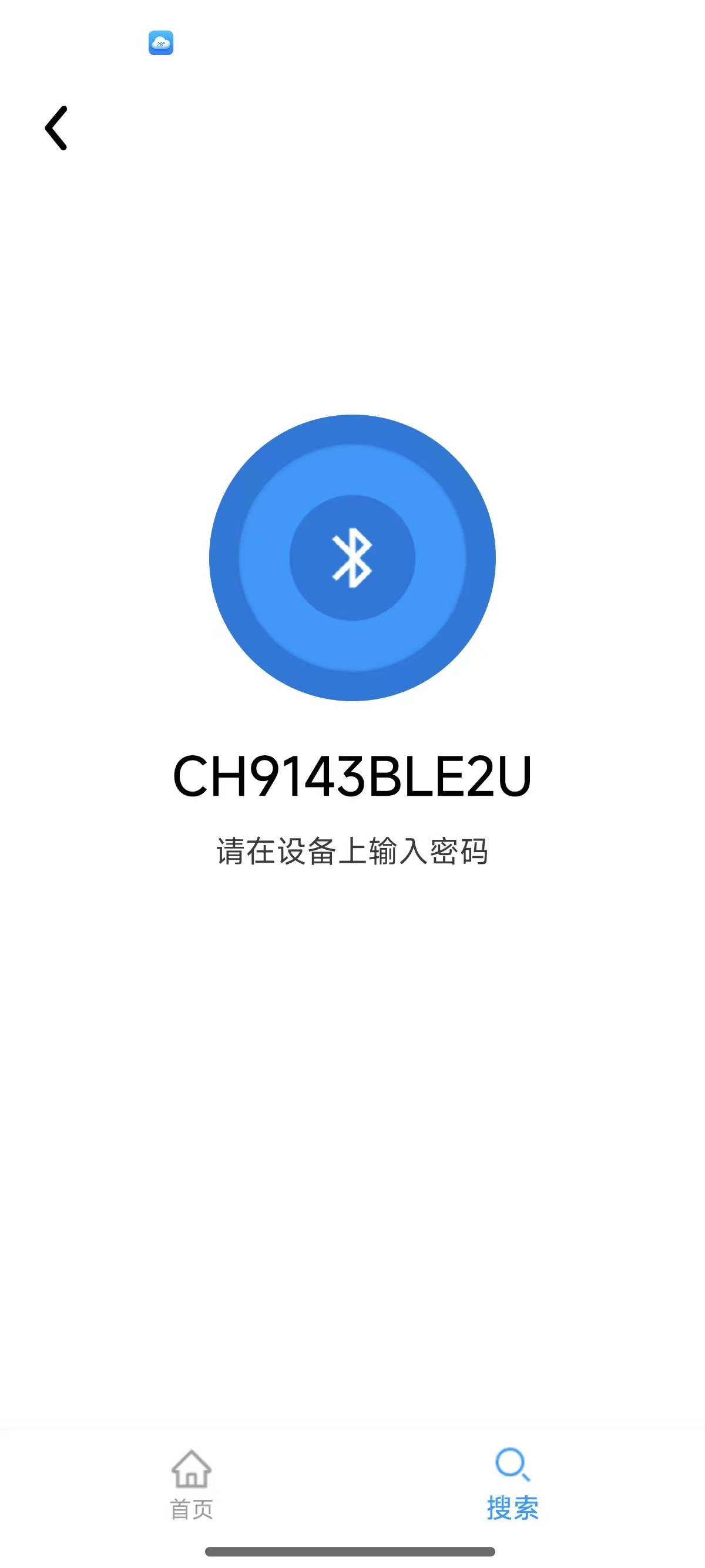
Select the Bluetooth device on your phone. The phone will then enter connection mode.
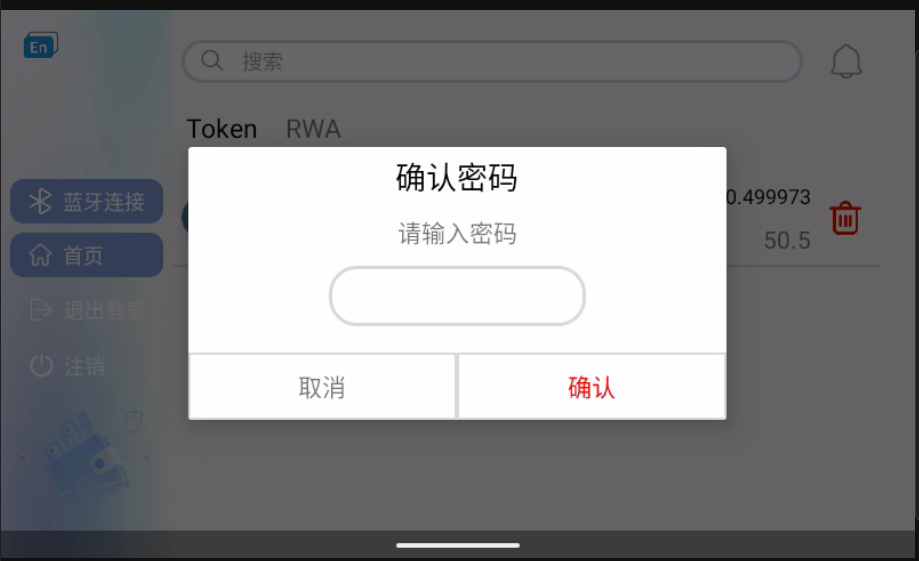
A pop-up will appear on the Bluetooth device. Enter the login password and tap Confirm.
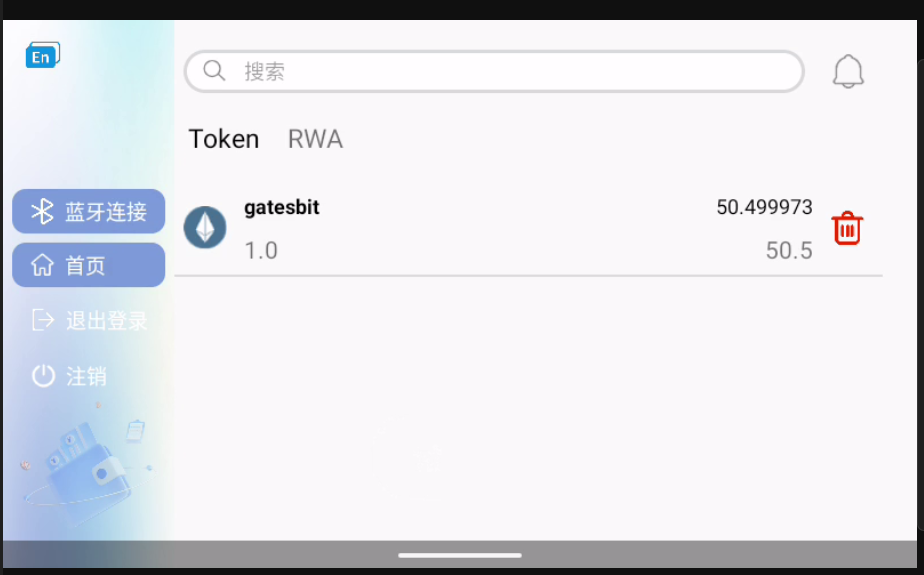
Wait a moment for the connection to succeed, then you can use the device normally.
Tap the ETH plus icon on your phone to download the ETH component.
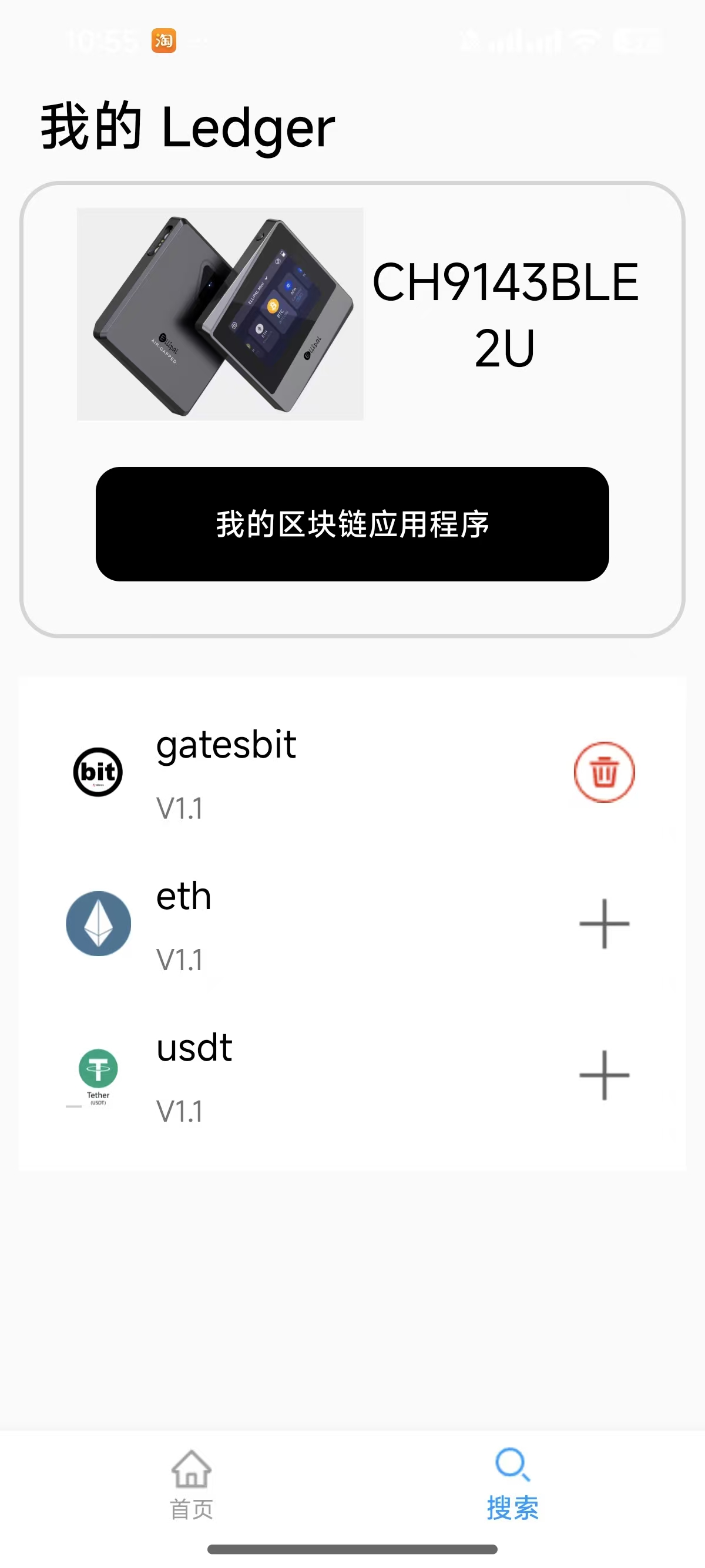
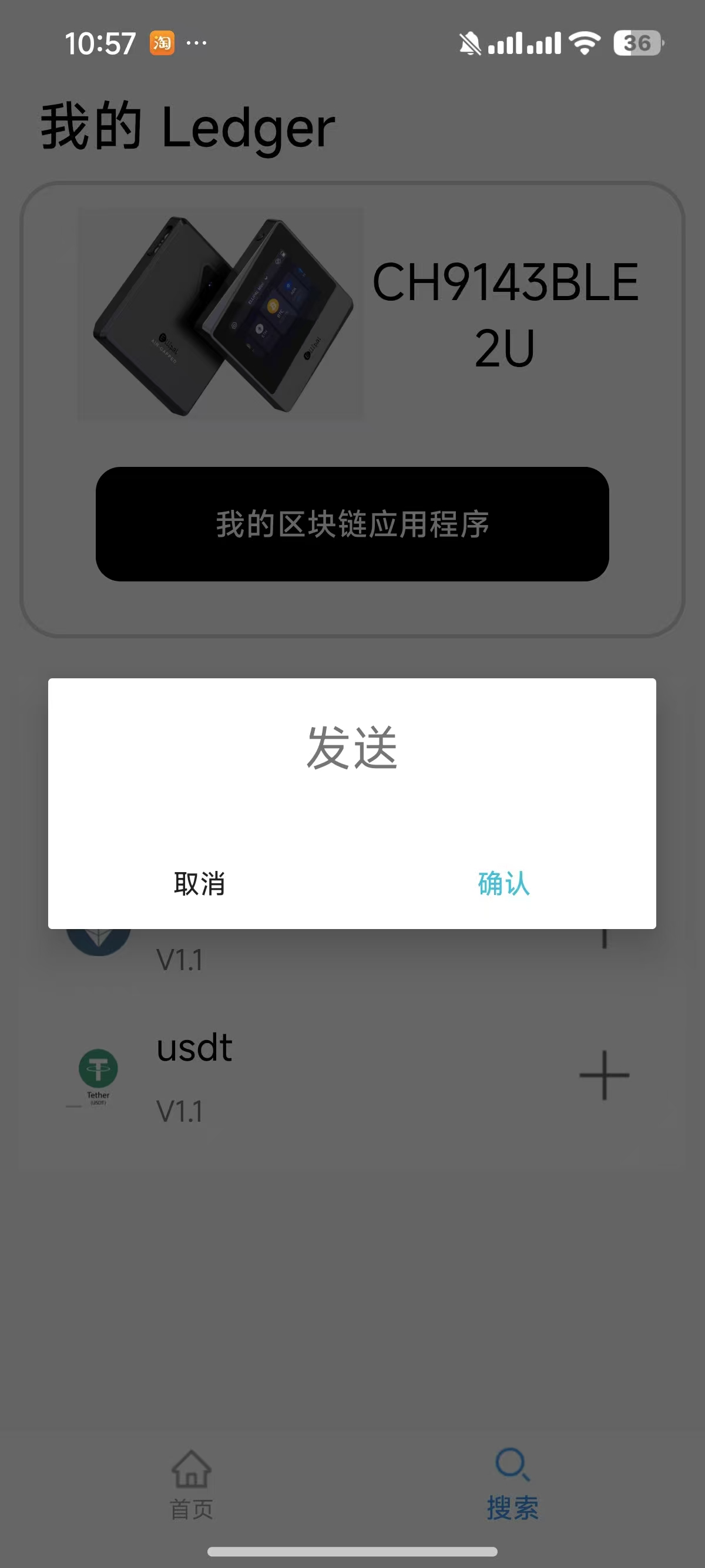
The download may take some time. Please be patient. Once the download is complete, enter the password to install the application.
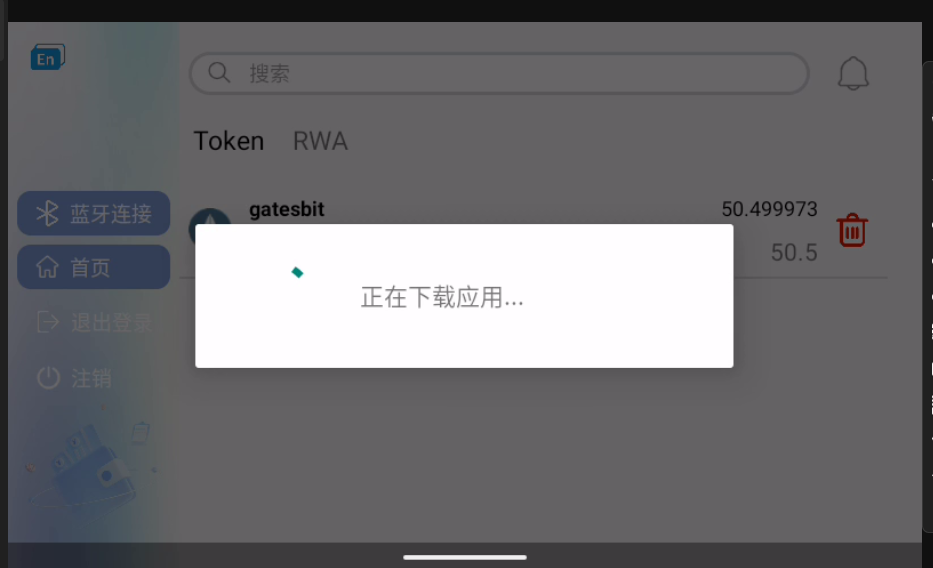
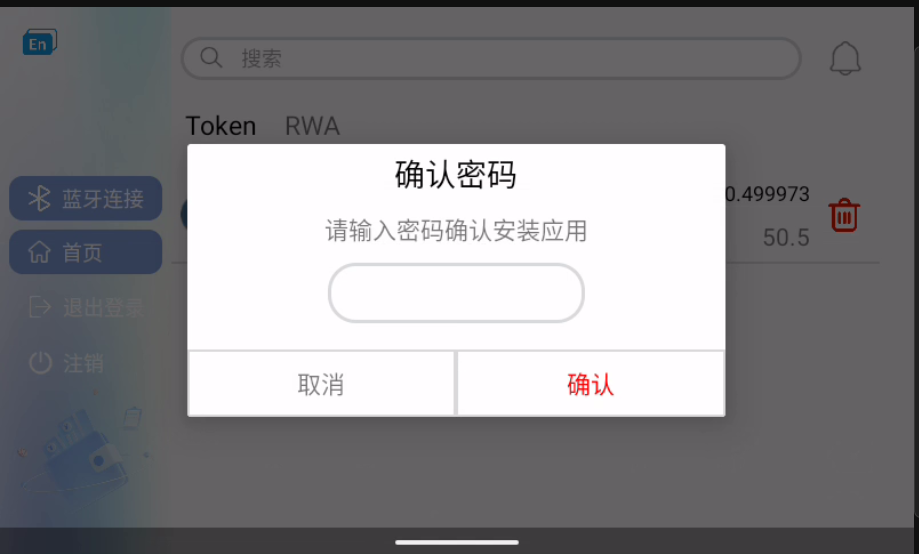
After successful installation, the ETH component will be added.
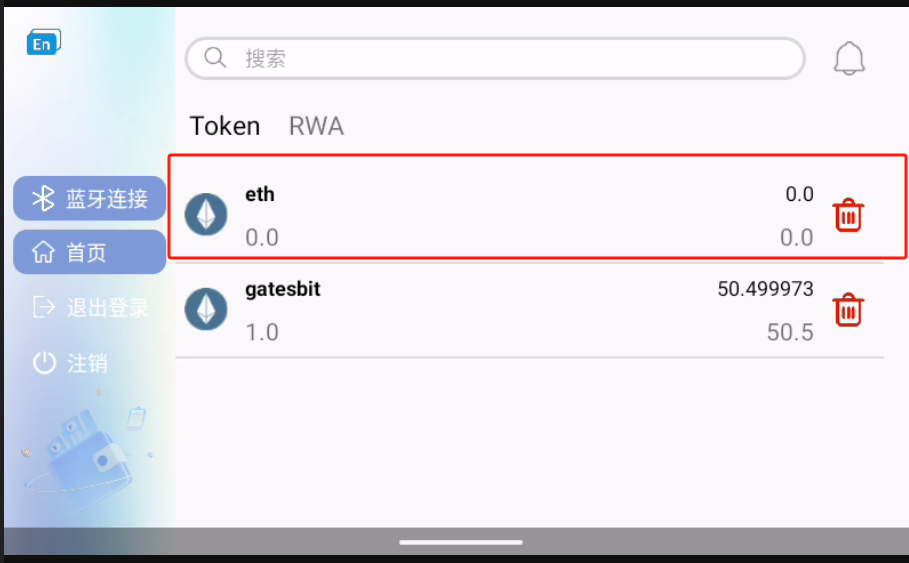
Tap a component to enter its detail page.
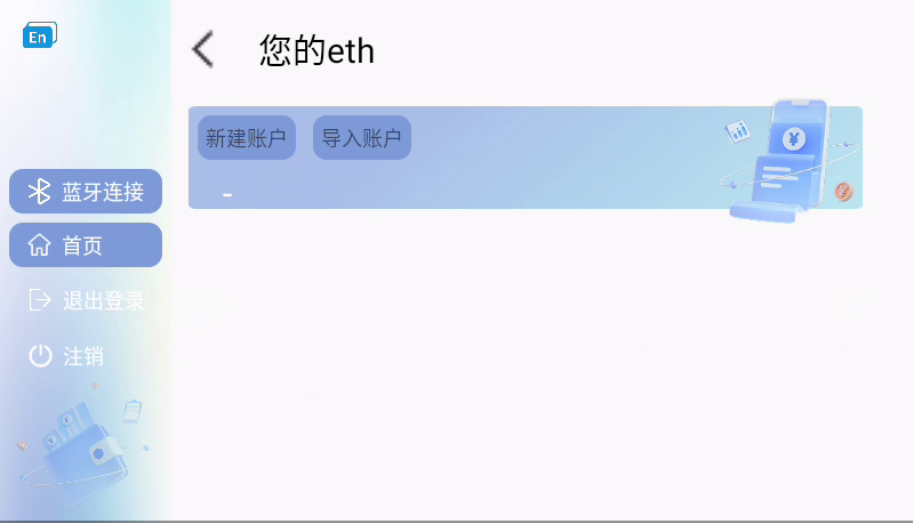
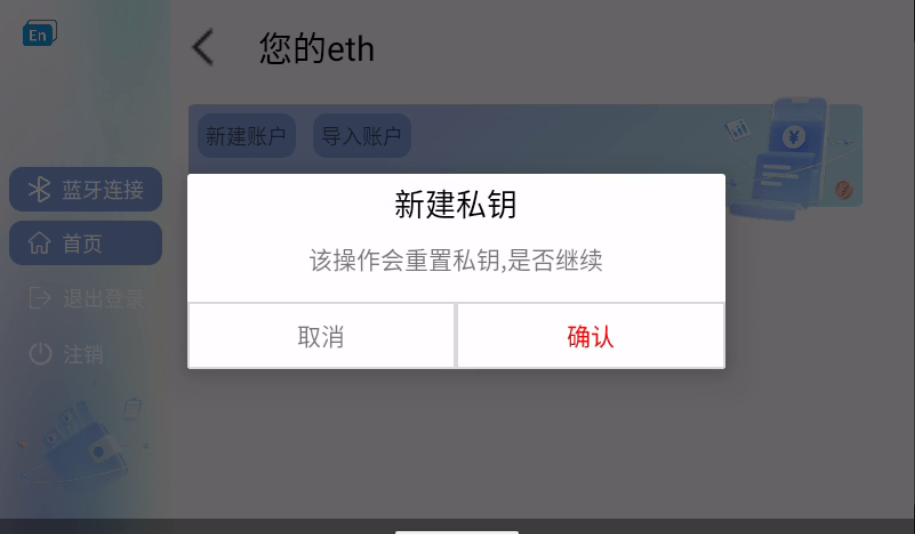
Tapping "Create Account" will generate a new account and private key. If an account already exists, it will be overwritten. Please proceed with caution.
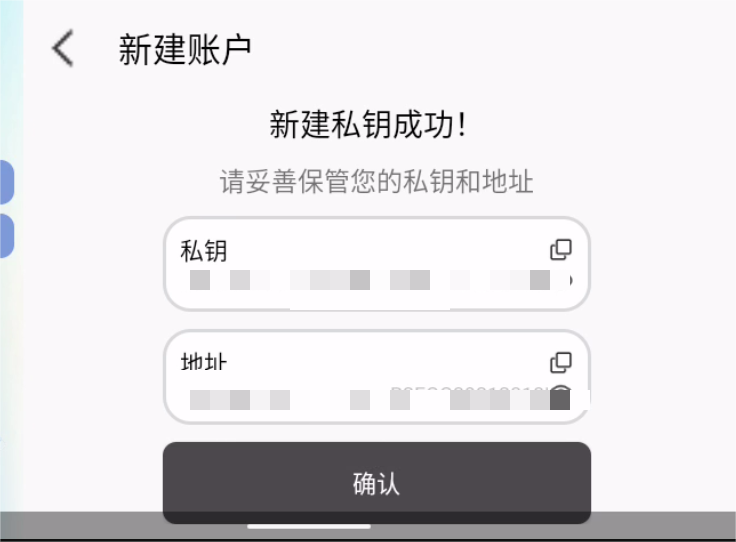
After creating an account, you can view and copy the private key and address.
Tap "Import Private Key" to edit an existing private key or import a new one.
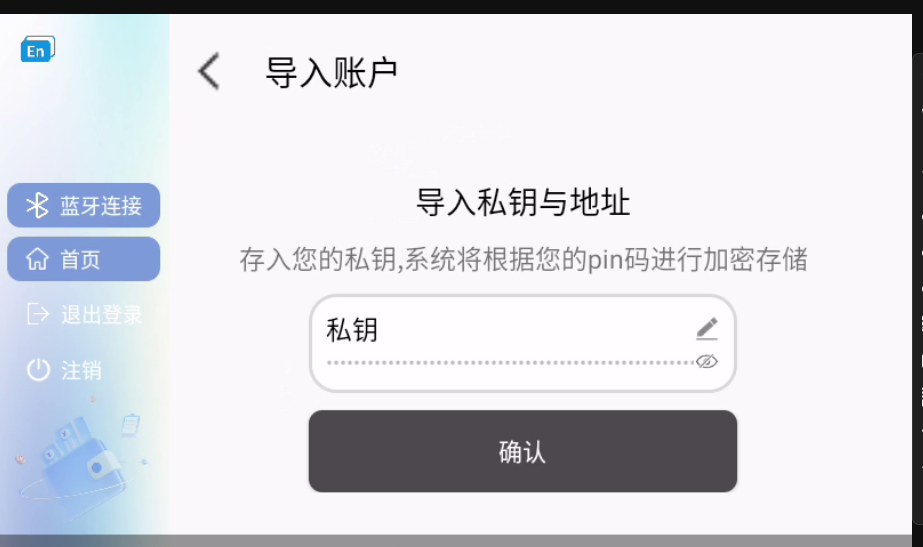
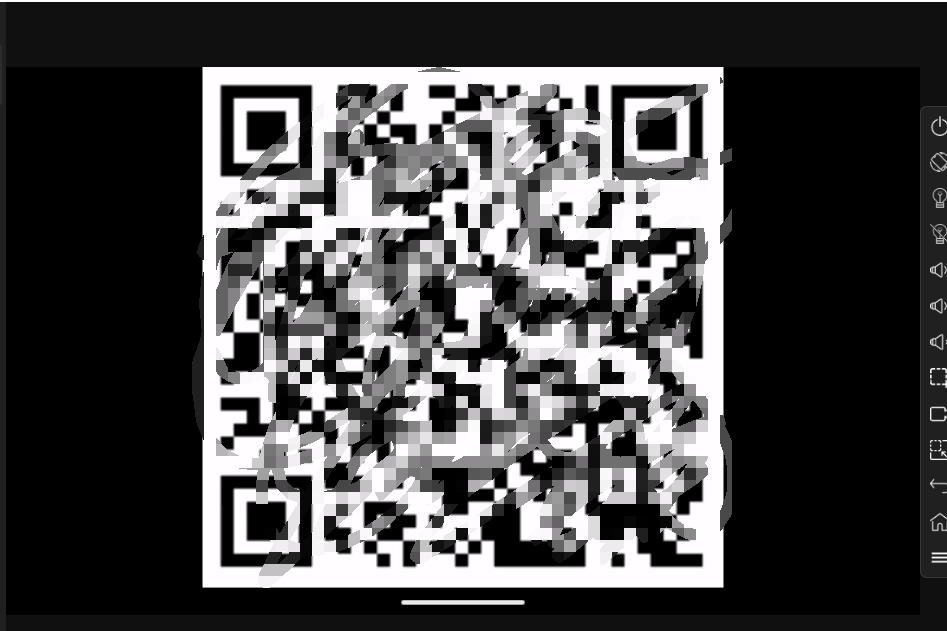
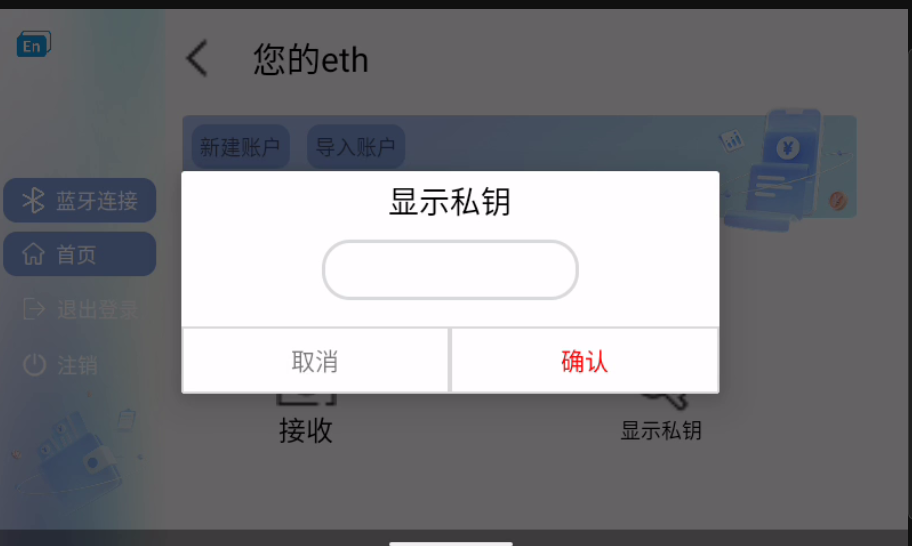
After creating or importing, you can enter the password to display the private key or view the account QR code.
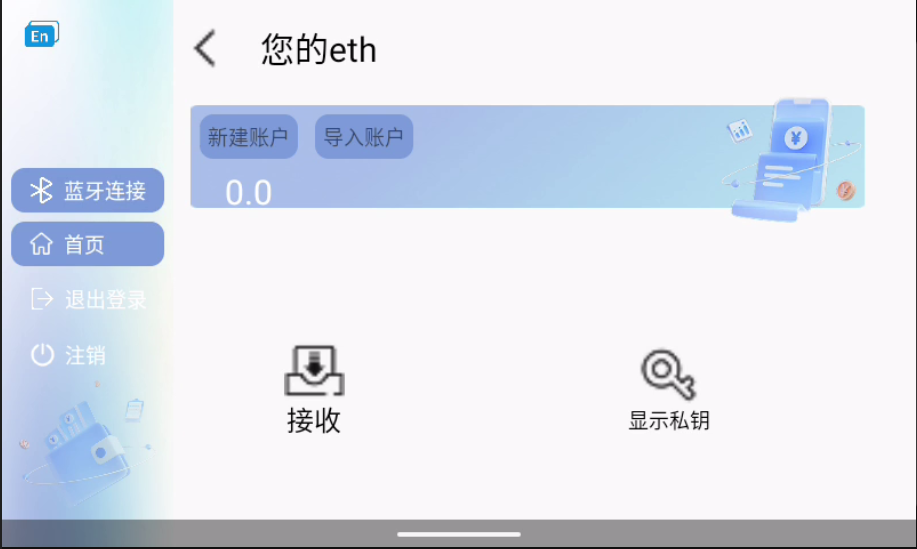
Tap "Receive"
Tap "Show Private Key"
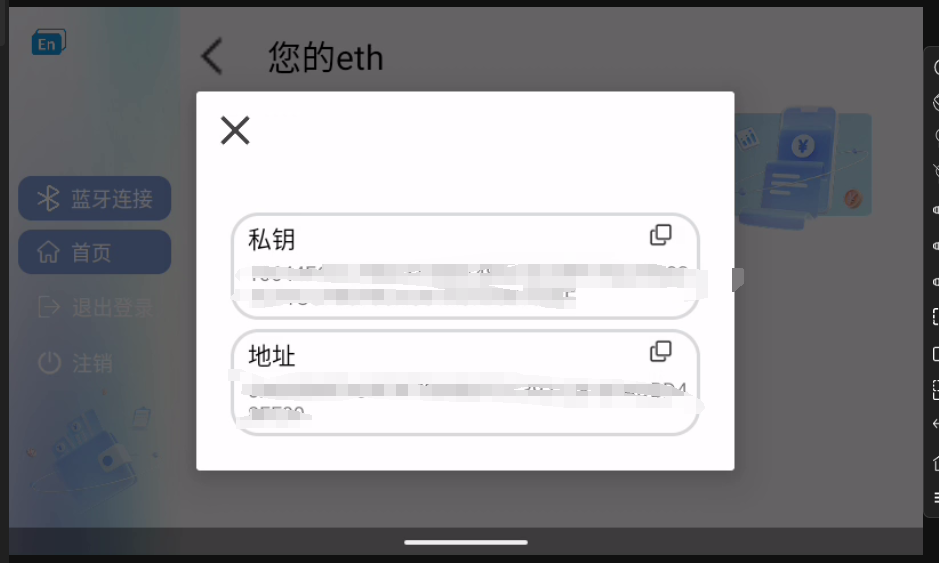
5. Signing (Login Example)
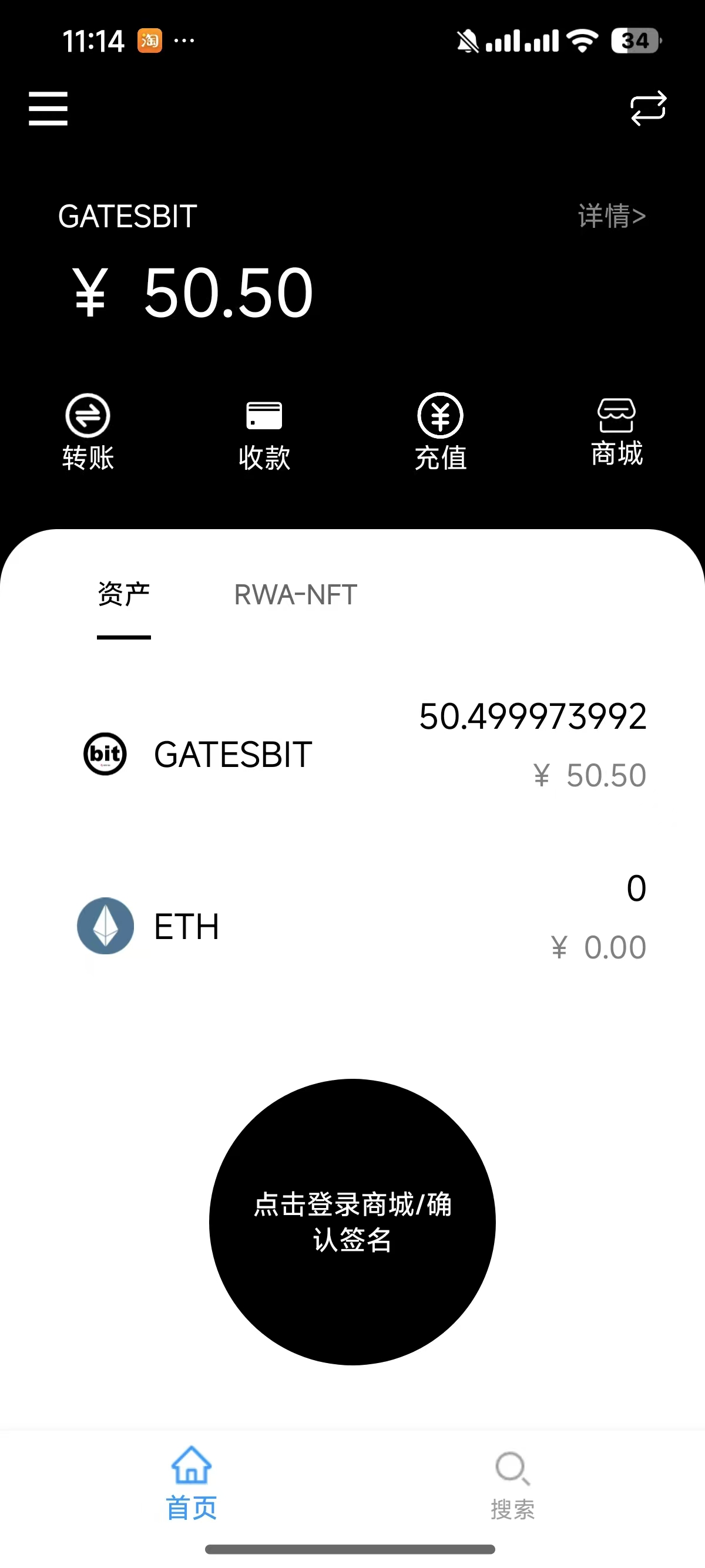
Tap "Store" on your phone.
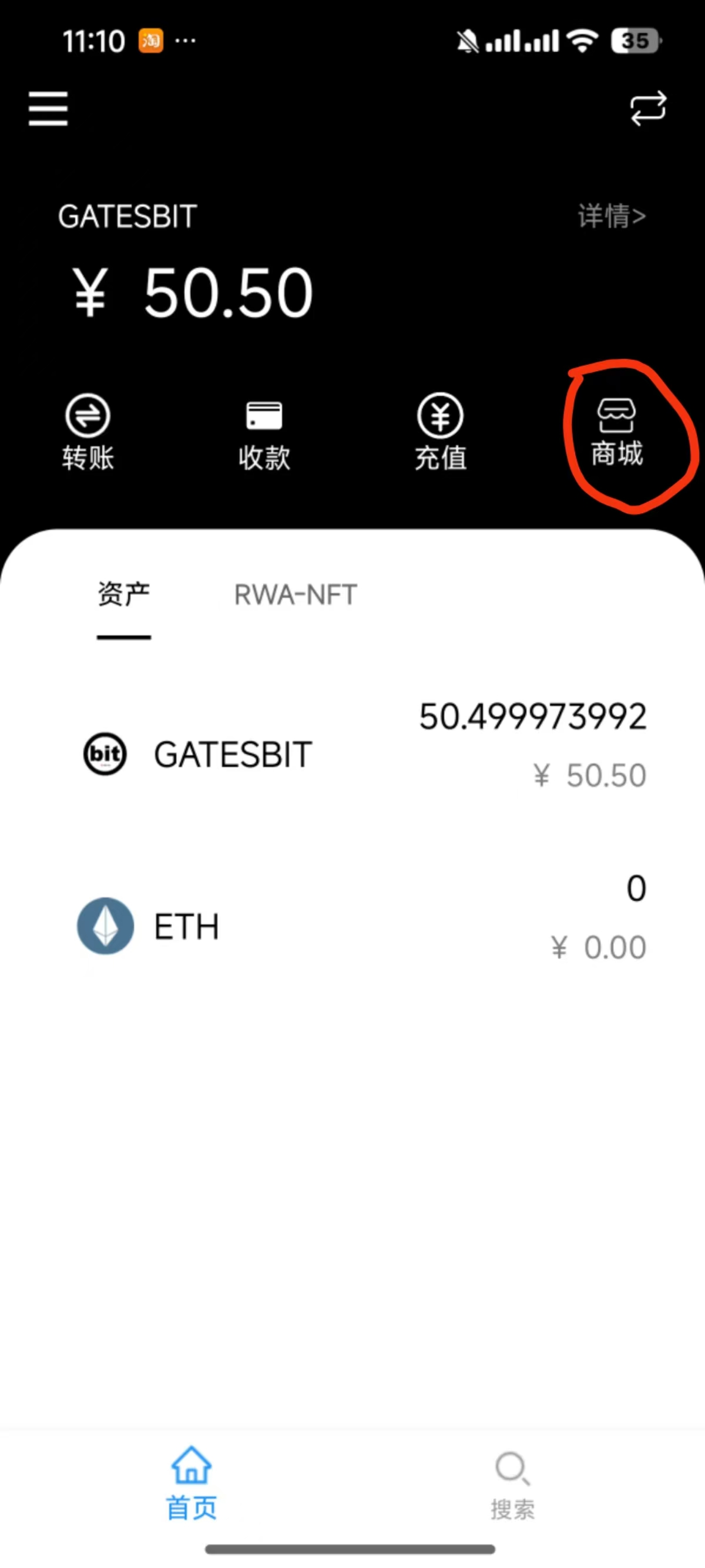
The store page will open in the browser.
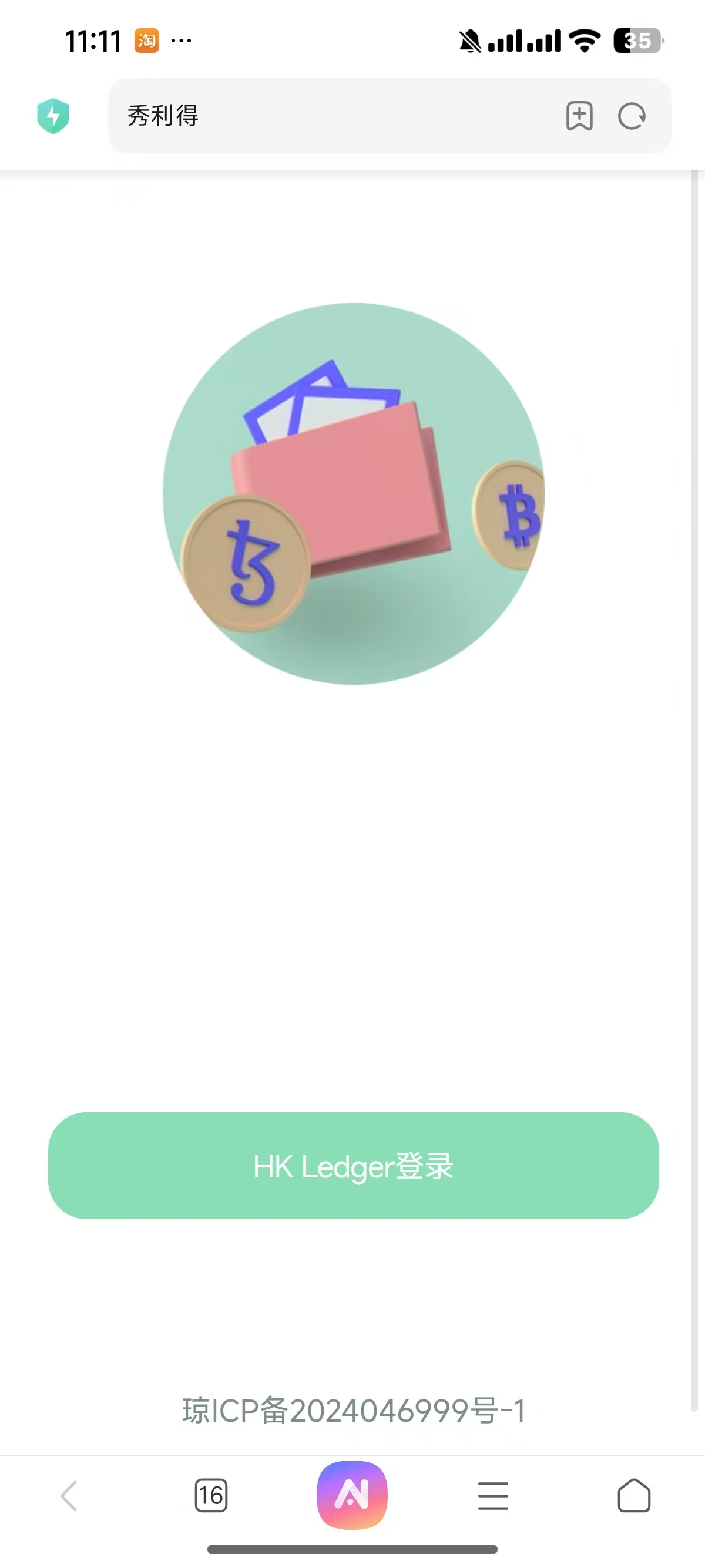
Select the Bluetooth version to open the app.
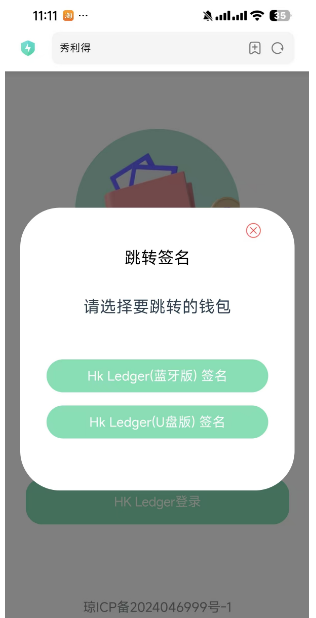
Tap "Confirm Login" (or "Confirm Signing"). This process may require reconnecting the Bluetooth device.
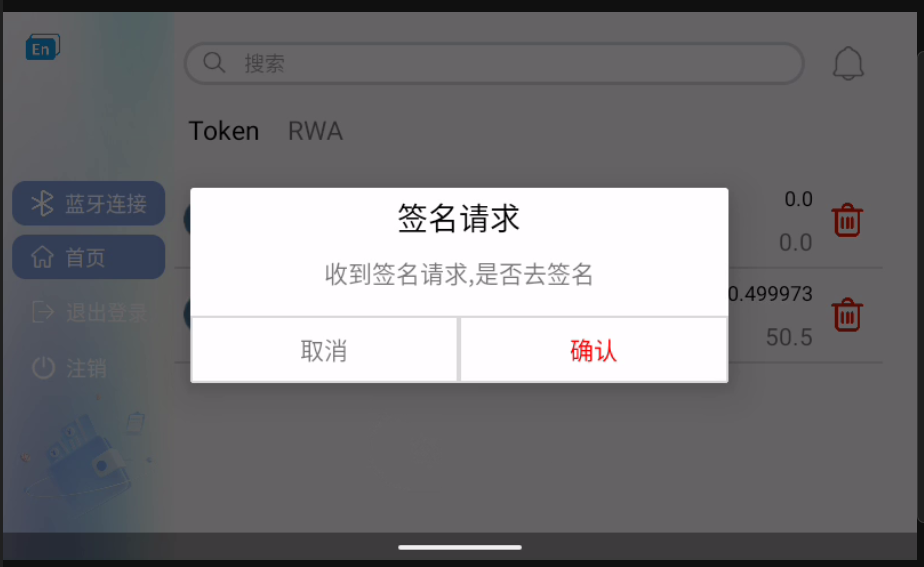
The Bluetooth device will receive a signing request. You can also access the signing interface via the bell icon in the upper right corner.
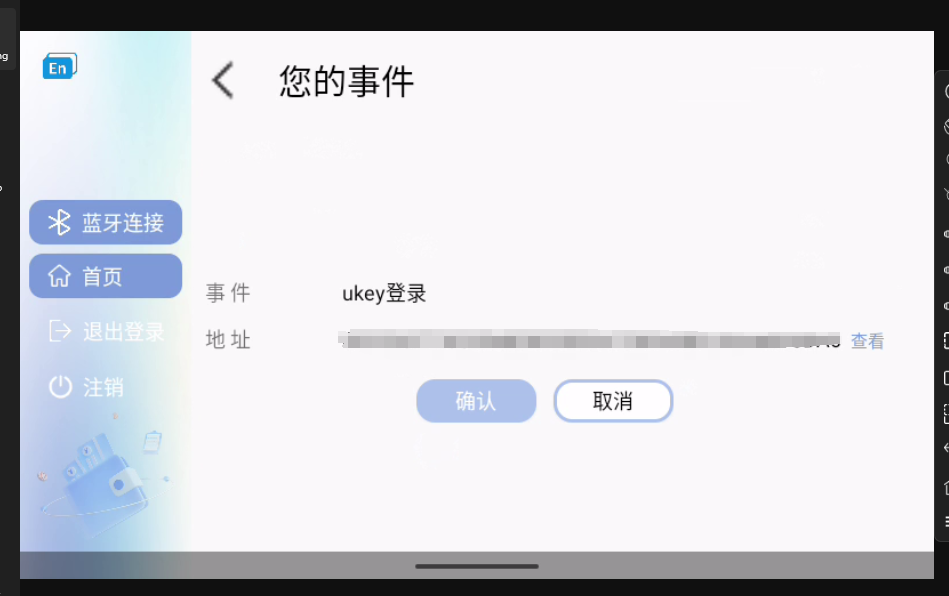
On this page, enter the password to confirm the signing. Only one signing request can exist at a time. If the phone sends multiple requests, the previous signing request will be overwritten.
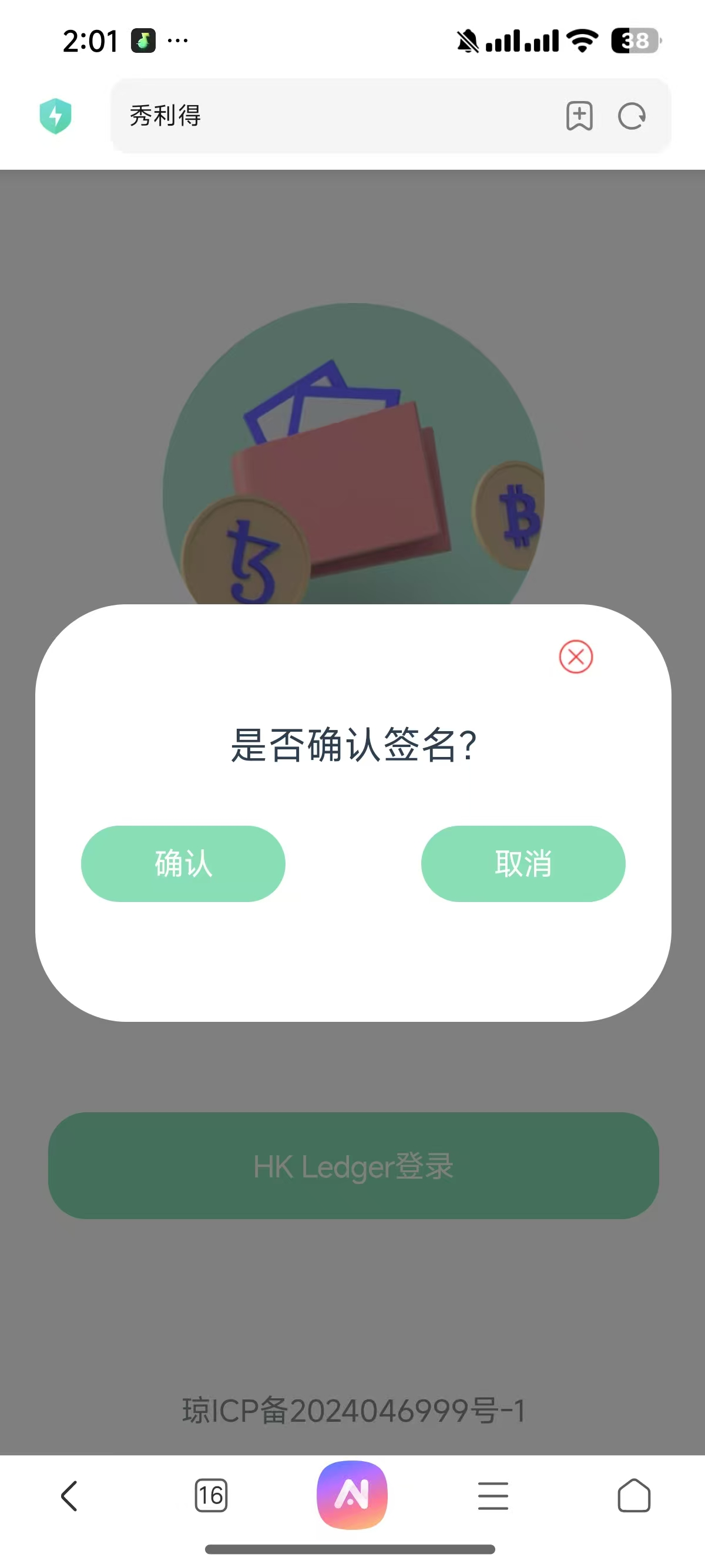
After confirming the signing on your phone, you will be prompted to redirect to the store. After confirming the signing in the store, you can log in to the system.