Cold Wallet User Manual - UKey Version
1. Initialization
Getting Started
> Obtain a new HK Ledger UKey device and download the corresponding HK Ledger Android application.
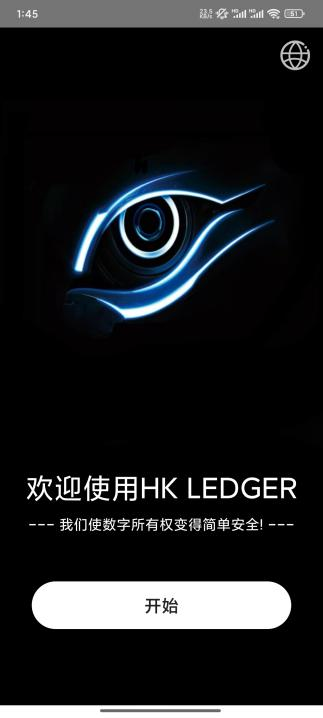
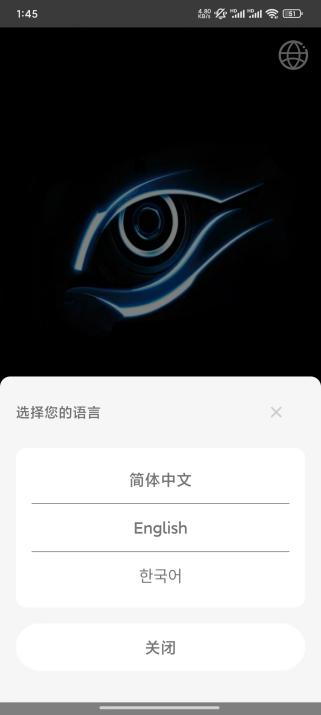
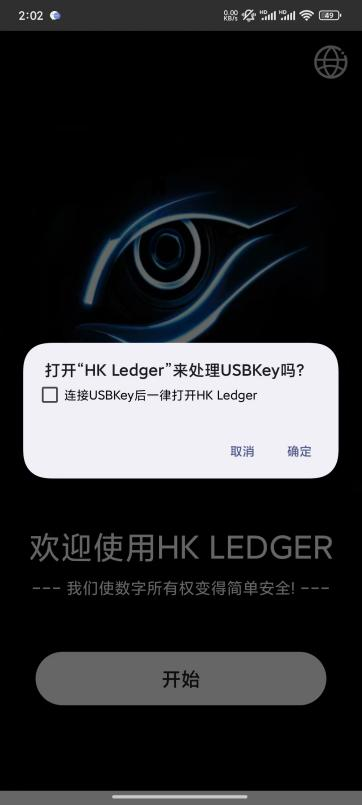
> Open the app. The screen will appear as shown below. You can switch languages in the upper right corner (default is Chinese). Tap the Start button. If no UKey device is inserted, you will not proceed to the next page, and a prompt will appear: "HK LEDGER device not found. Please insert the HK LEDGER device and try again."
Setting the Password
> After correctly inserting the UKey device, the phone system will prompt "Open HK LEDGER to handle USBKey?" Tap the Confirm button; otherwise, the UKey data cannot be read, which will affect subsequent operations.
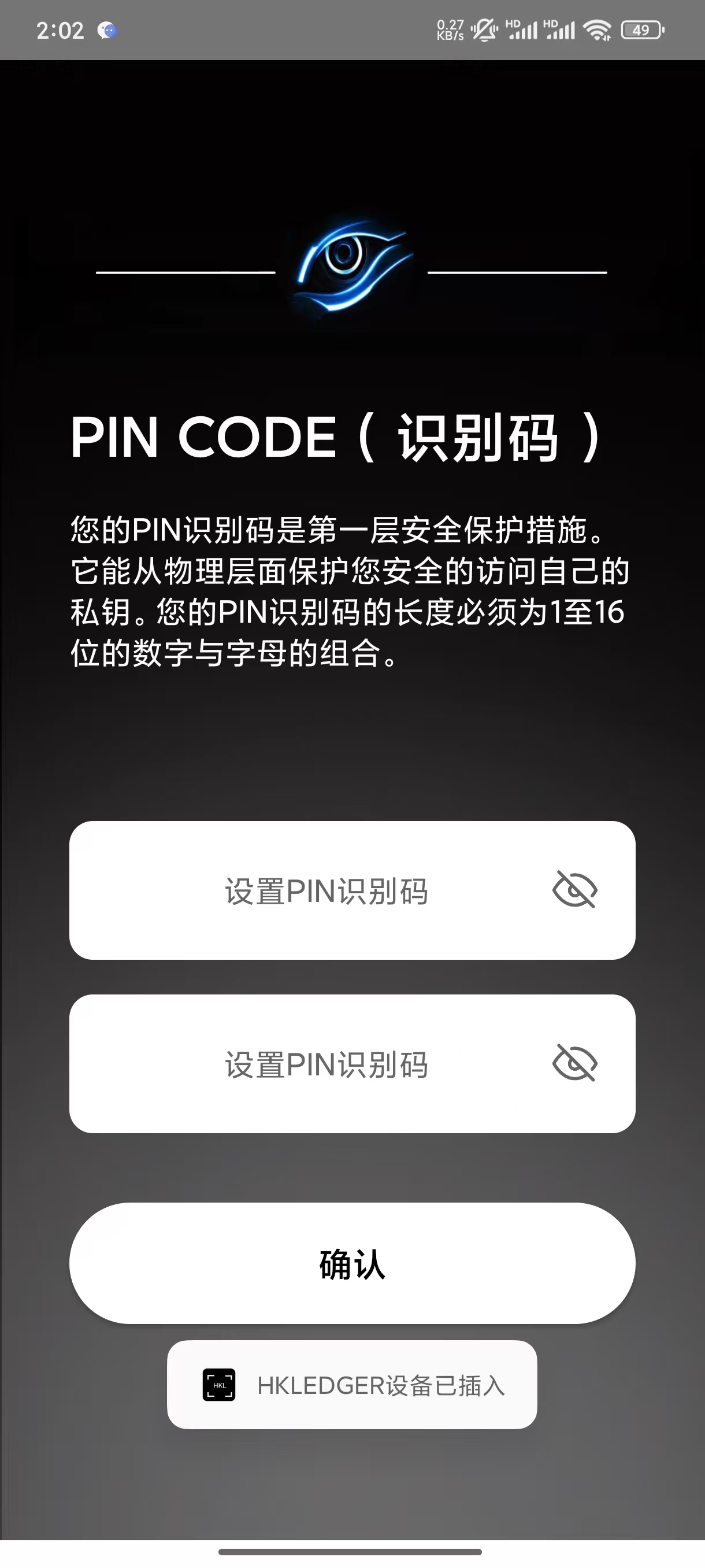
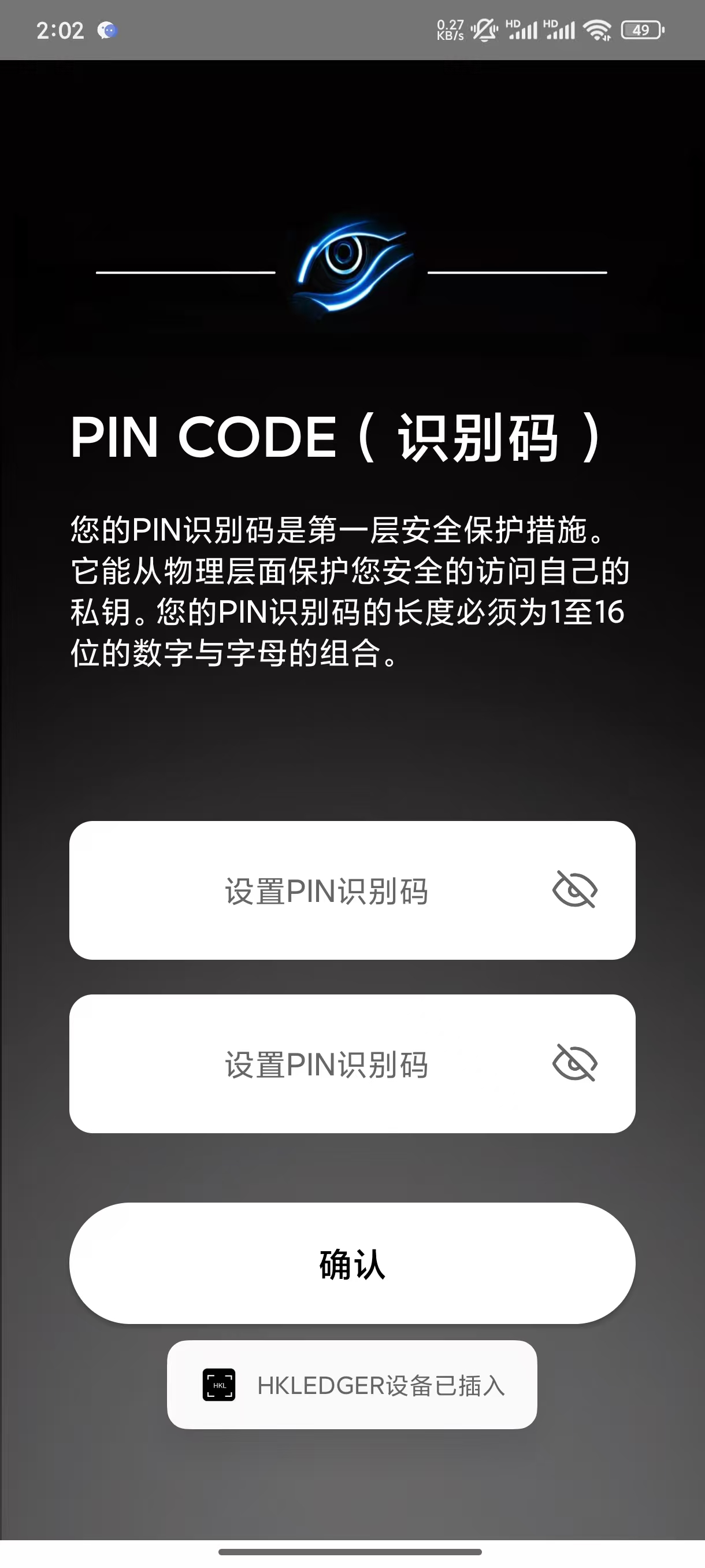
> After tapping Confirm, new users will be redirected to the Set PIN CODE page. Set a PIN code as the first layer of protection, serving as an encryption measure. You can set a combination of 1-24 digits and letters.
Selecting a Wallet Network
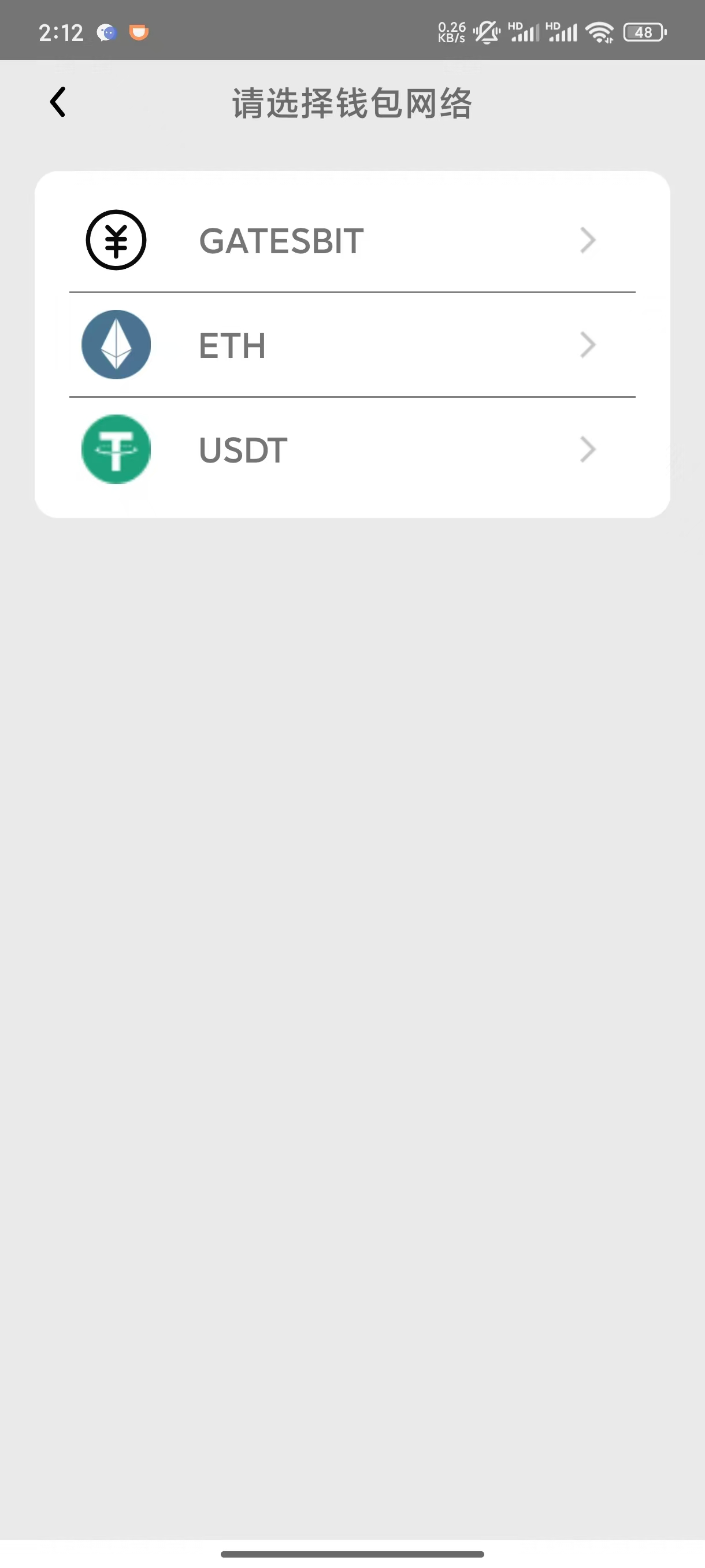
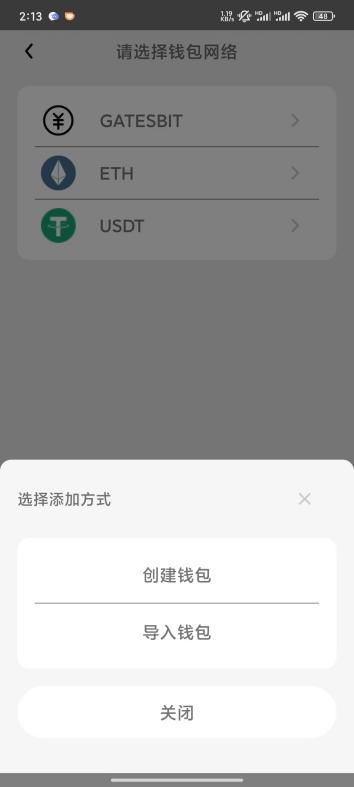
> After setting the PIN code, tap the Confirm button to enter the wallet network selection page, which includes "GATESBIT", "ETH", and "USDT". Select one to configure the wallet network. A pop-up will appear with wallet creation options: Create Wallet and Import Wallet. As shown below:
Creating a Wallet
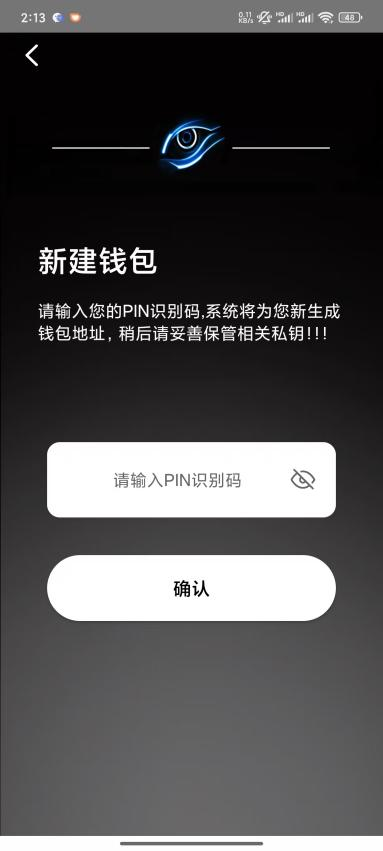
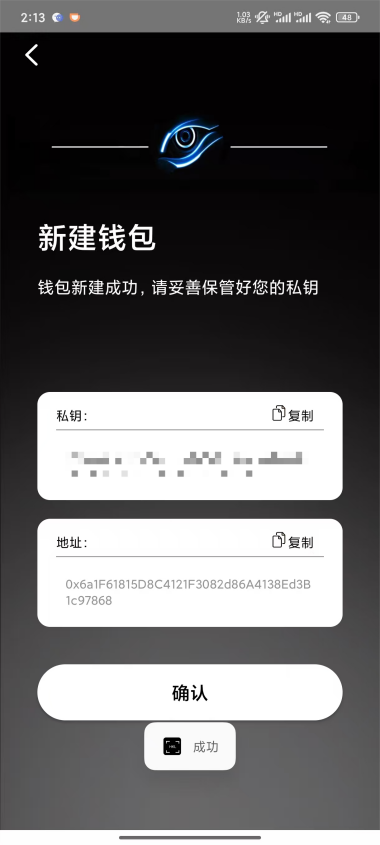
> Select "Create Wallet" to navigate to the new wallet page. You need to enter the previously set PIN code. Upon successful entry, the system will automatically generate a private key and address. Please keep your private key safe.
Importing a Wallet
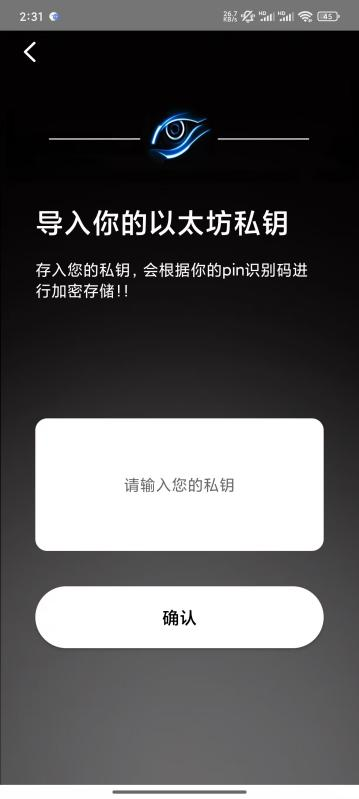
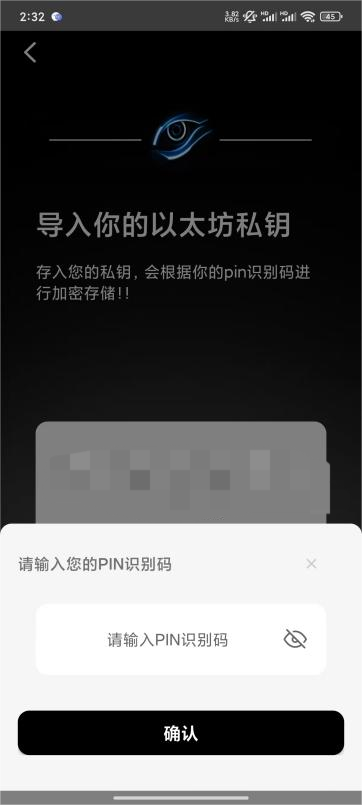
> Select "Import Wallet" to navigate to the import private key page. Enter your private key. After validating the private key (if validation fails, you will see "Your private key format is incorrect. Please re-enter"), tap the Confirm button and enter the PIN code as required. Upon successful entry, the private key will be encrypted using the PIN code and stored in the designated UKey space. After successful storage, you will be redirected to the next page.
Completing Initialization
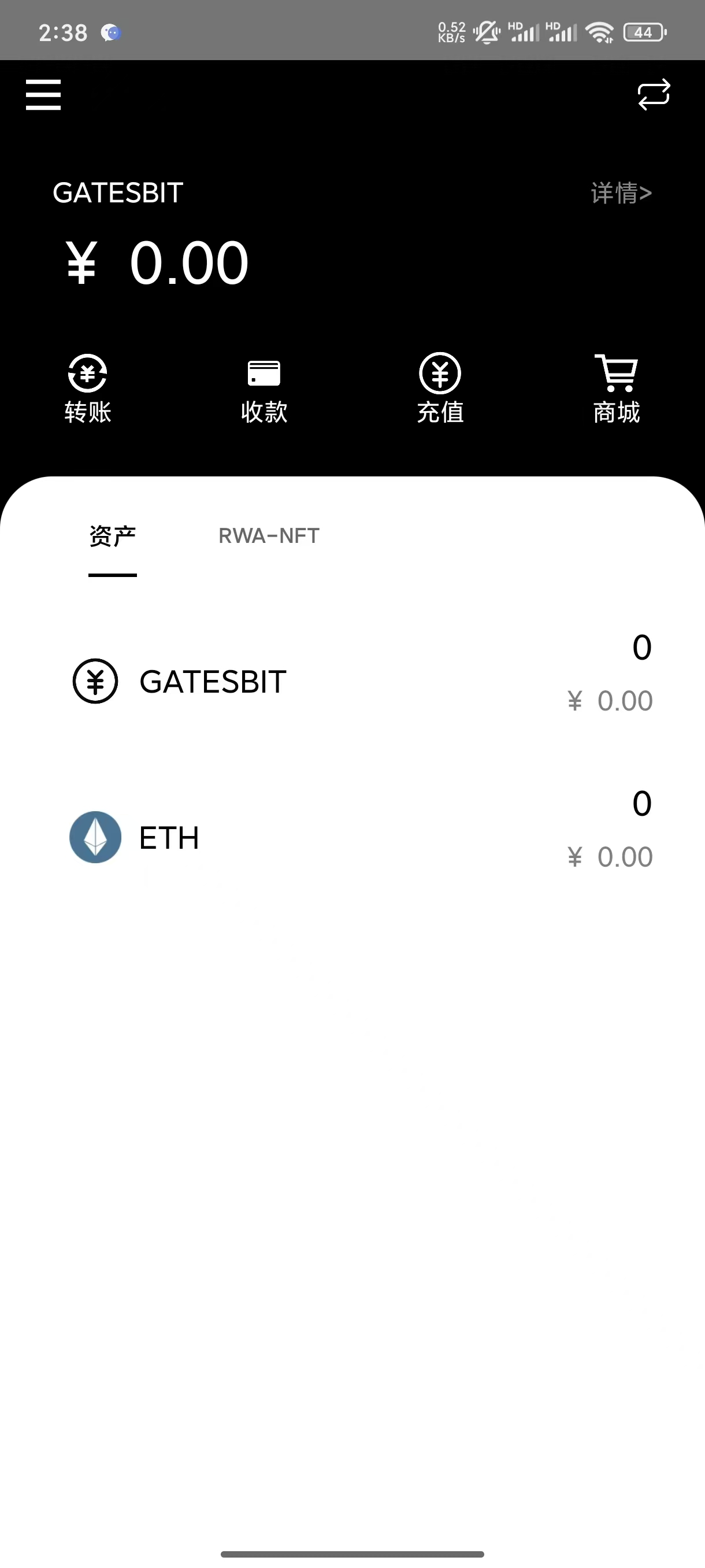
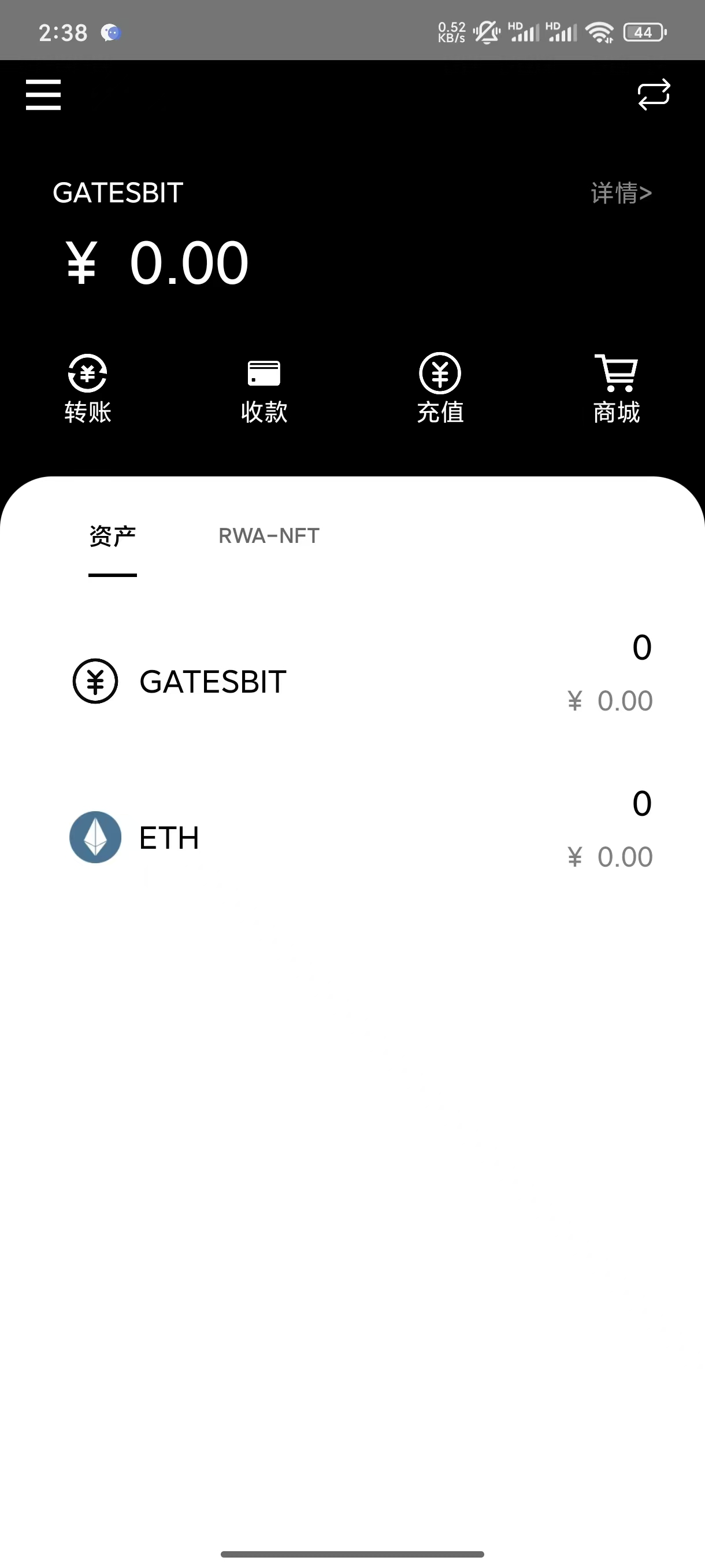
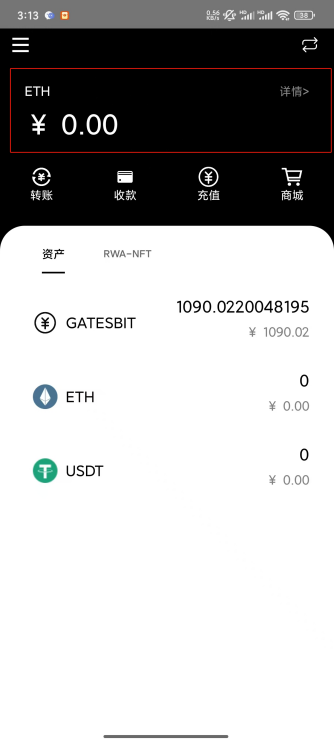
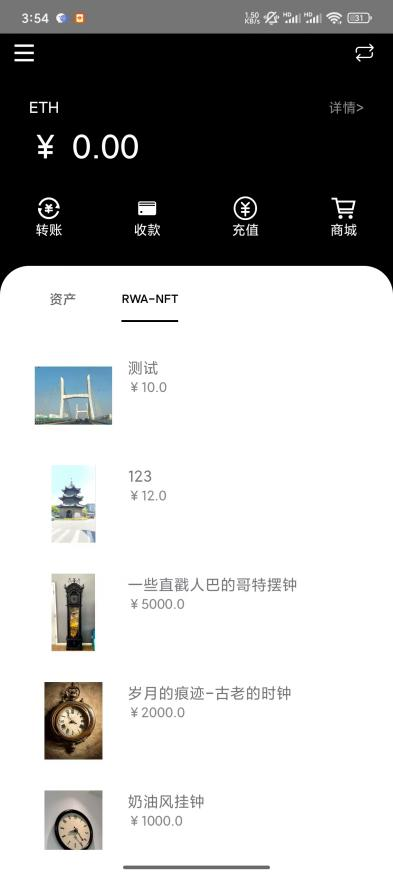
> After successfully creating the account, you will be redirected to the main page, which displays account information, account balance, the equivalent balance in local currency, and provides functions such as transfer, receive, top-up, and store navigation. Initialization is now complete.
2. How to Use
Login
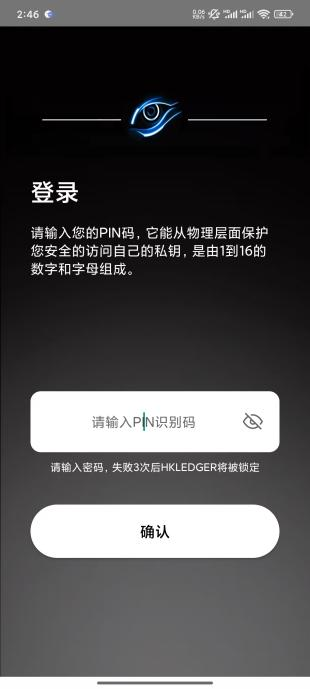
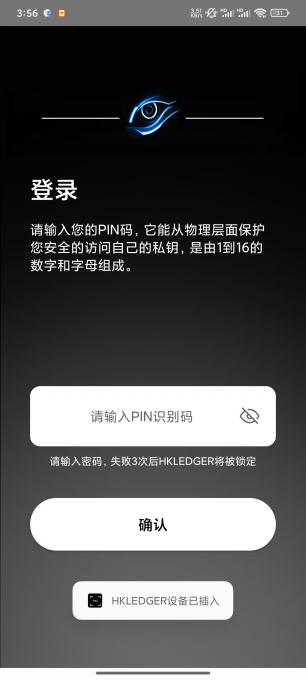
> After initialization, insert the UKey. The phone system will prompt "Open HK LEDGER to handle USBKey?" Tap the Confirm button, and the page will automatically navigate to the login page. Enter the PIN code to log in. If the device is abnormal, a prompt will appear: "Device error. Please re-insert the HK LEDGER device." Re-insert the device as instructed. After 3 incorrect password attempts, the app will be locked and PIN login will be unavailable. It will unlock after a 24-hour countdown. Please ensure the PIN code is correct. After successful entry, you will be redirected to the main page.
Changing Password
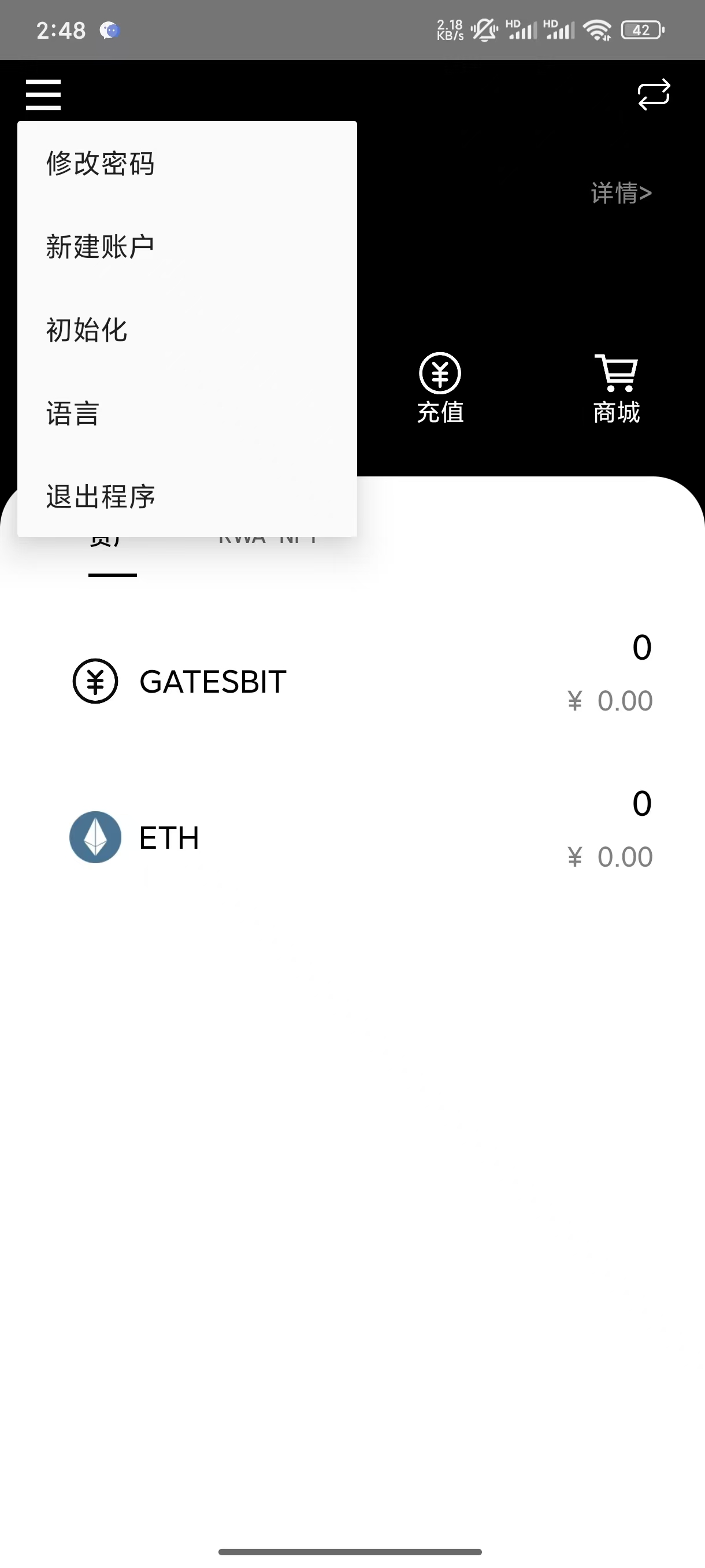
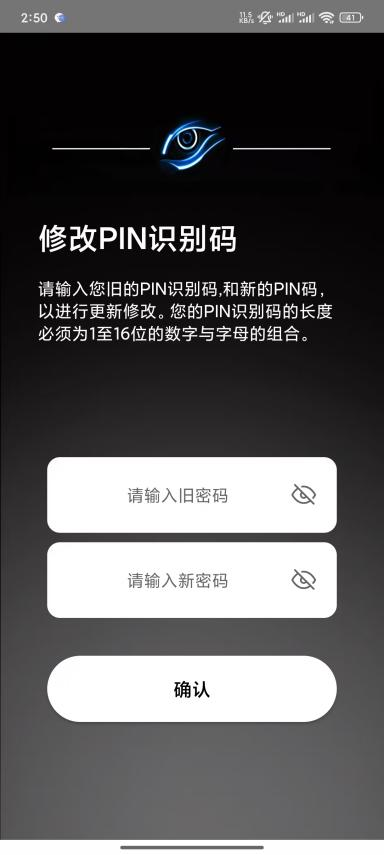
> Tap the upper-left button on the main page, select "Change Password", and navigate to the change password page. As shown below, enter the old password as prompted, then enter the new password. Tap Confirm to complete the change and return to the main page. During this process, the data stored in the UKey is read and decrypted using the old password, then re-encrypted with the new password and stored back in the UKey.
Creating a New Account
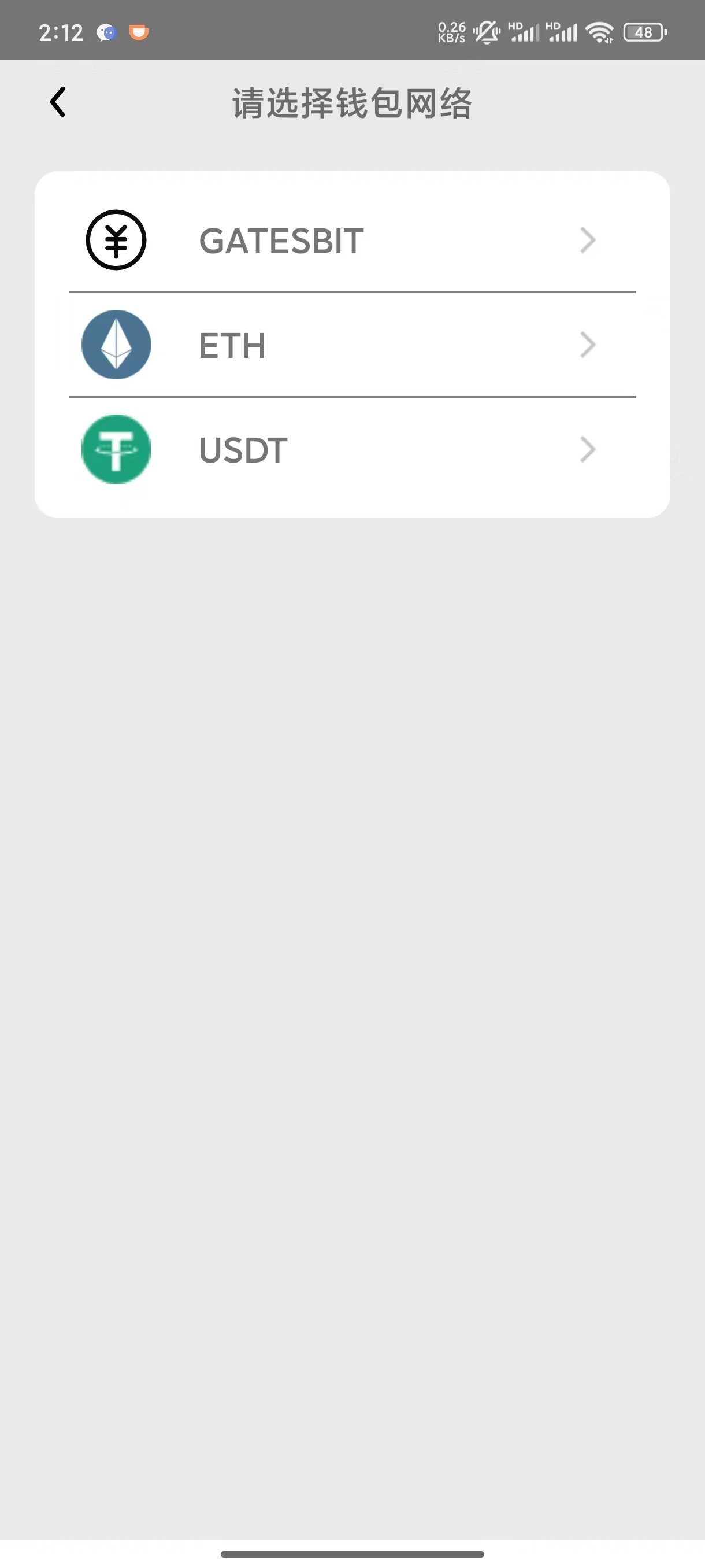
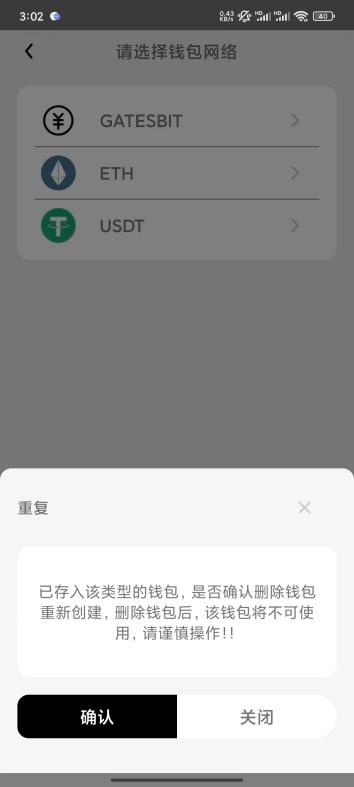
> Tap the upper-left button on the main page, select "New Account", and navigate to the wallet network selection page, same as during initialization. After selecting a wallet, you can create or import. For an existing wallet network, a duplicate warning will appear. Please proceed with caution.
Reset (Initialize)
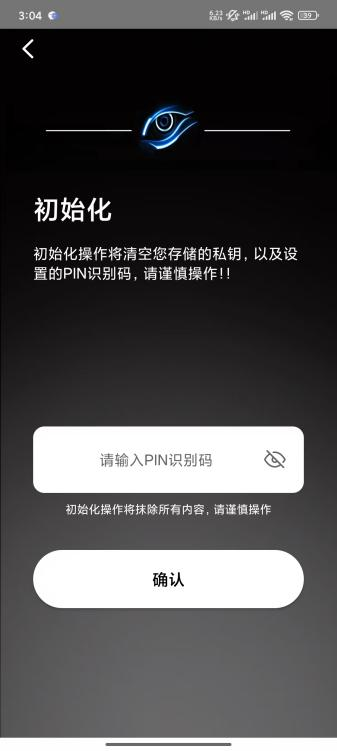
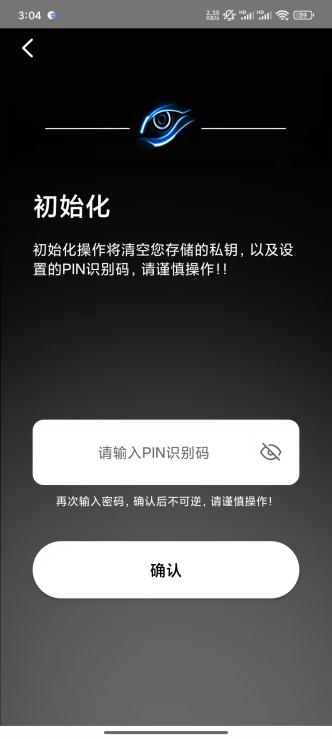
> Tap the upper-left button on the main page, select "Initialize", and navigate to the initialization page. Enter the PIN code as required — this operation requires entering the PIN code twice. Tap Confirm to clear all stored private keys and other data. Please proceed with caution. After successful entry, you will be redirected to the Set PIN Code page.
Exiting the App
> Tap the upper-left button on the main page, select "Exit", and the app will automatically close, returning to the phone's home screen.
Switching Language
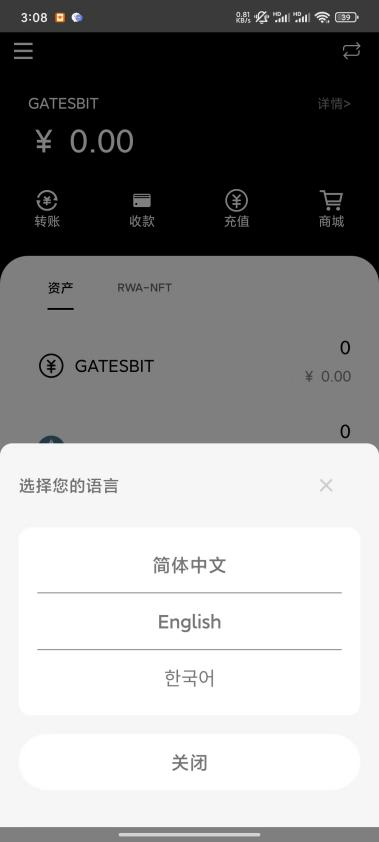
> Tap the upper-left button on the main page, select "Language", and a pop-up will appear with three language options to choose from.
Switching Wallets
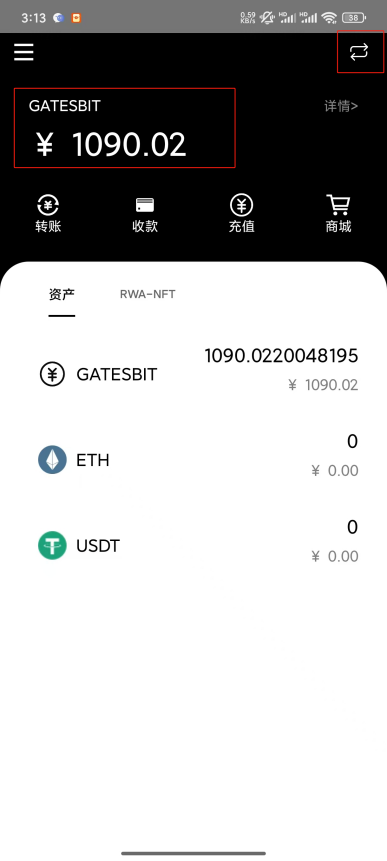
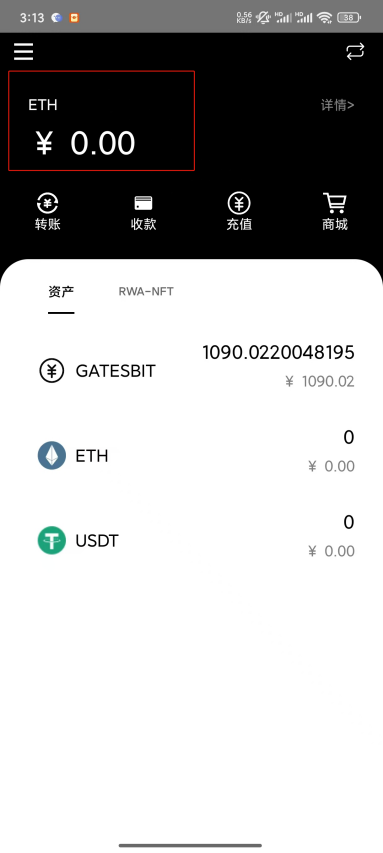
> Tap the switch button in the upper right corner to toggle the account information displayed at the top of the main page, as shown below.
Transfer
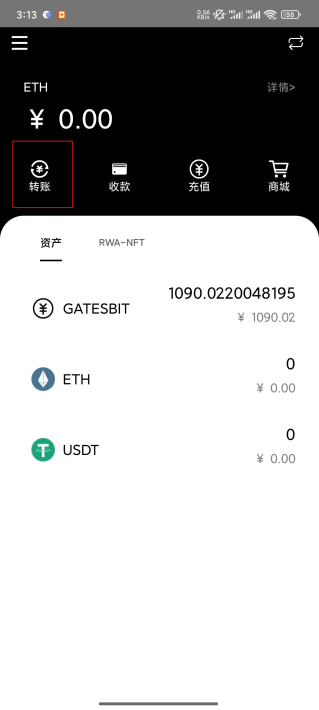
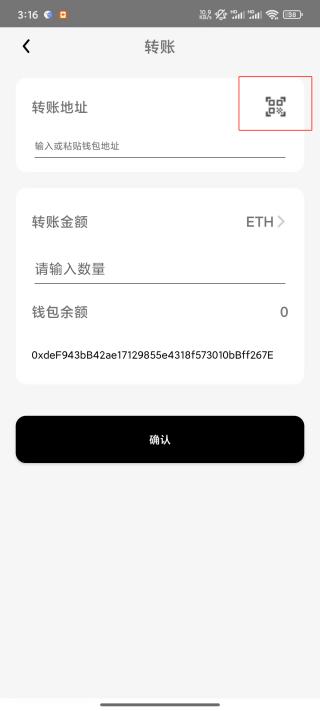
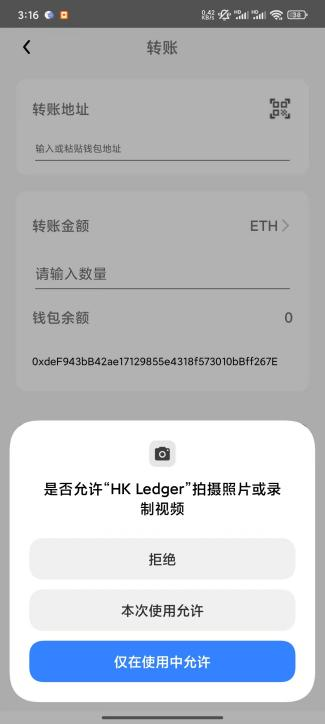
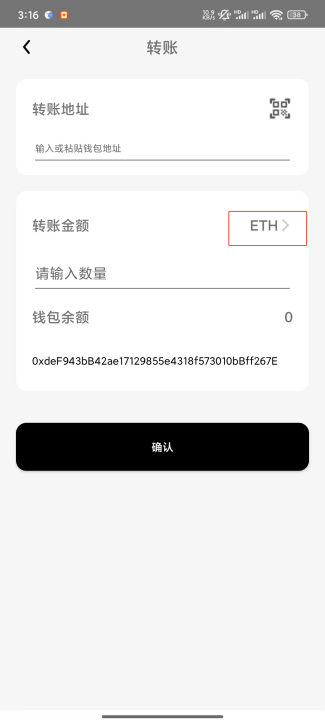
> Tap the "Transfer" button on the main page to navigate to the transfer page. On the transfer page, tap the "Scan QR Code" button to the right of the transfer address field. This will request camera permission. After granting permission, you will be redirected to the QR code scanning page, and the scanned content will appear in the transfer address field. Tap the icon to the right of the transfer amount to switch wallets.
Transfer Details
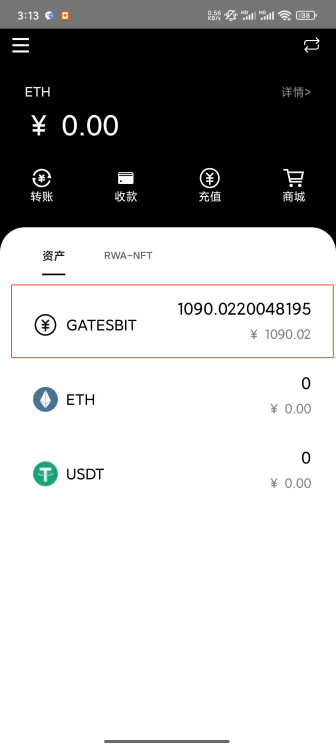
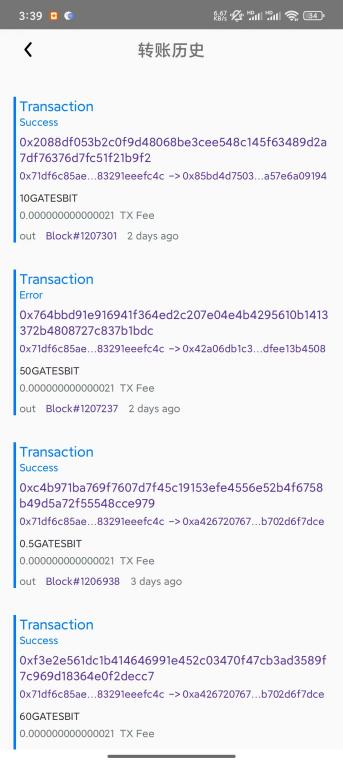
> Tap a wallet under the Assets section on the main page to navigate to the transfer history page, as shown below.
Receive
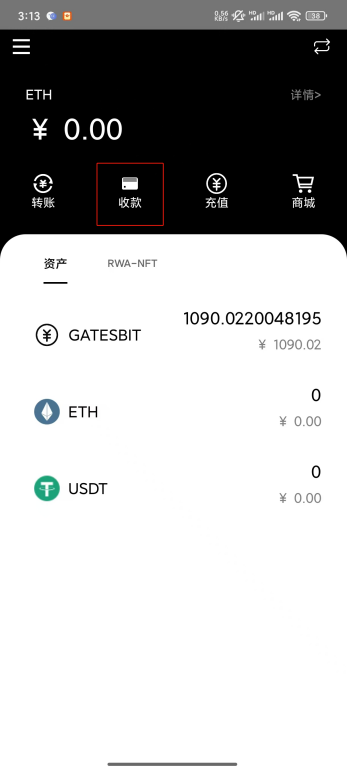
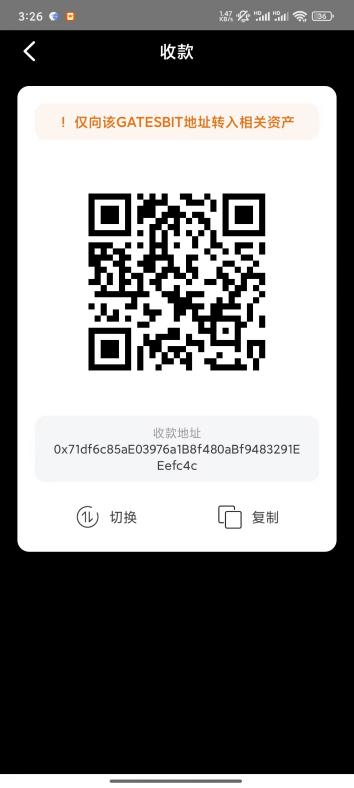
> Tap the "Receive" button on the main page to navigate to the receive QR code page. Tap "Switch" to change the receiving address, and tap "Copy" to copy the address.
Store
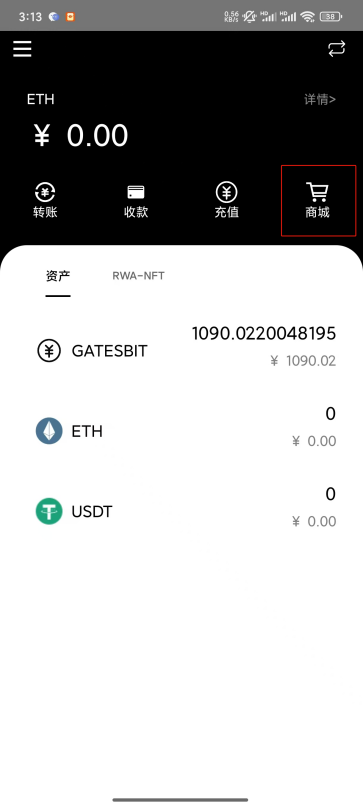
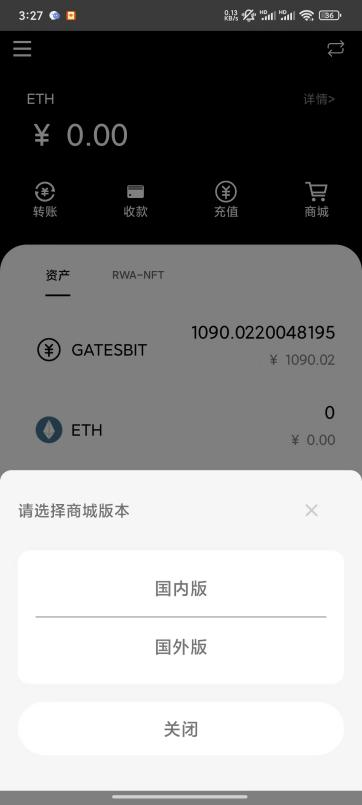
> Tap the "Store" button on the main page. A pop-up will appear to select the store version (domestic or international). After selecting, you will be redirected to the store page in the phone's default browser.
Top-Up
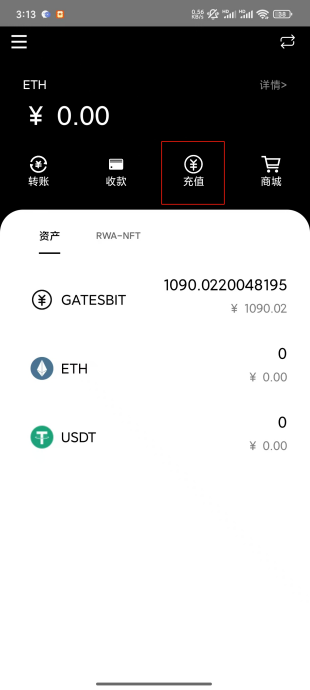
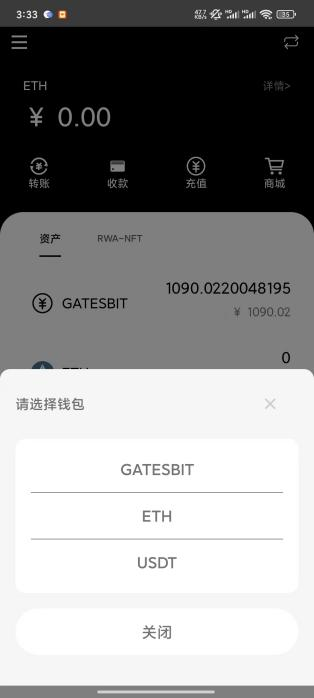
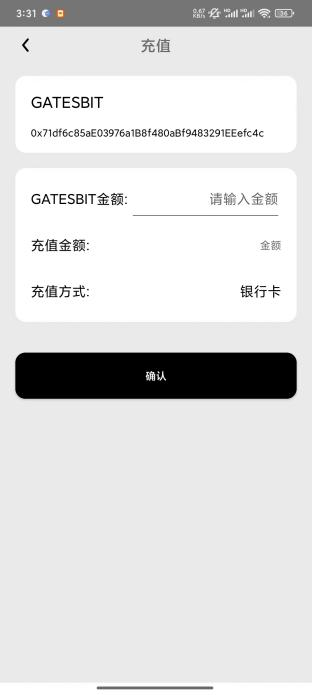
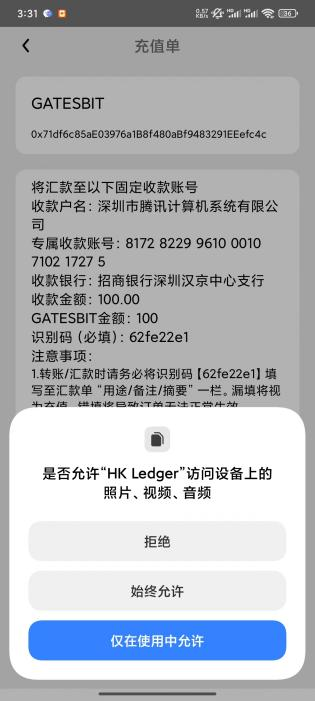
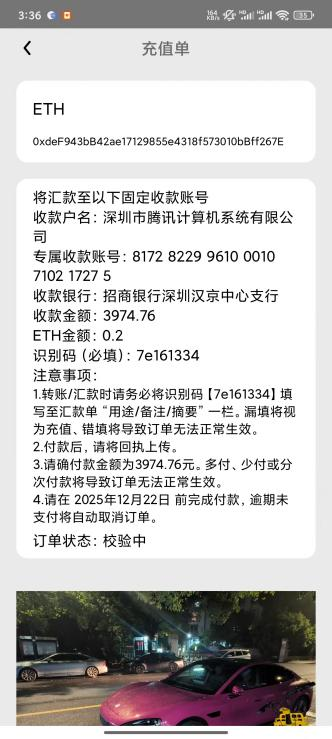
> Tap the "Top-Up" button on the main page. A pop-up will appear to select the wallet version. After selecting, you will be redirected to the corresponding top-up page. Tap Confirm to navigate to the top-up order page. Follow the instructions to transfer funds to the designated account, upload the receipt, and wait for backend review and approval.
Top-Up History
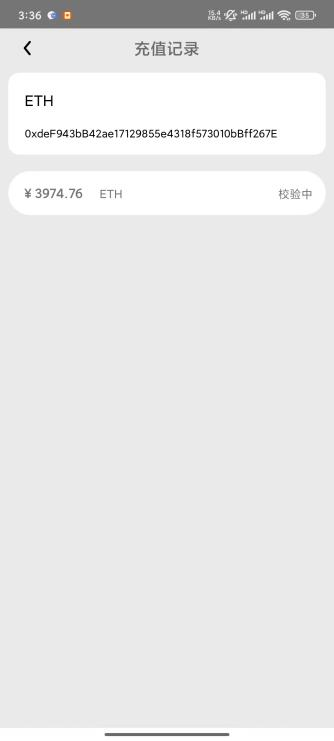
> Tap the Details button on the main page to navigate to the top-up records list page. Select an item to view the detailed top-up order information, as shown below.
RWA-NFT
> Select RWA-NFT to view the NFT products minted in the store.
3. Signing (Login Example)
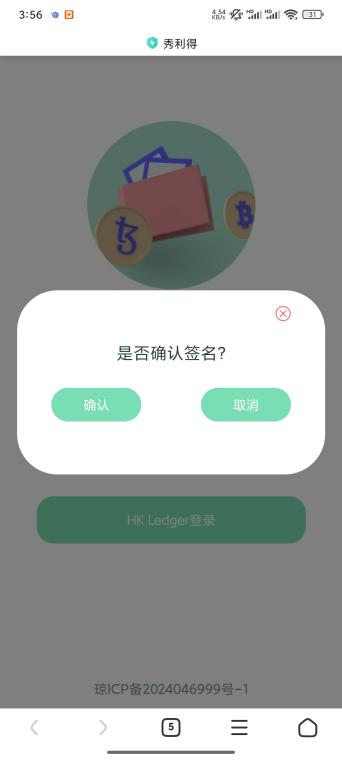
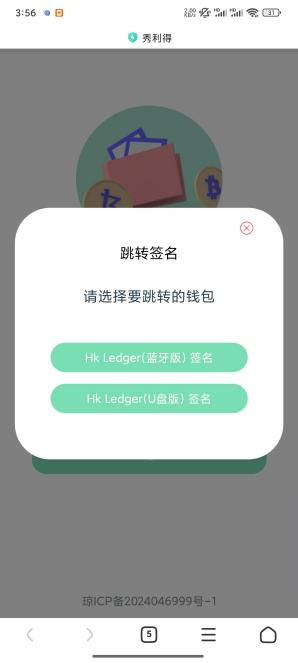
1. Open the store, tap the "HK LEDGER Login" button. A pop-up will appear. Select the app for signing and choose the UKey version.
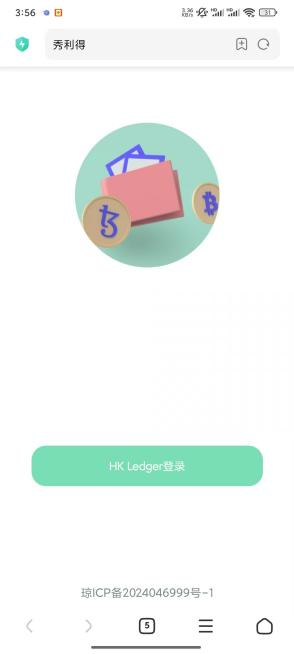
2. The browser will redirect to the app login page. Please insert the UKey and enter the correct PIN code.
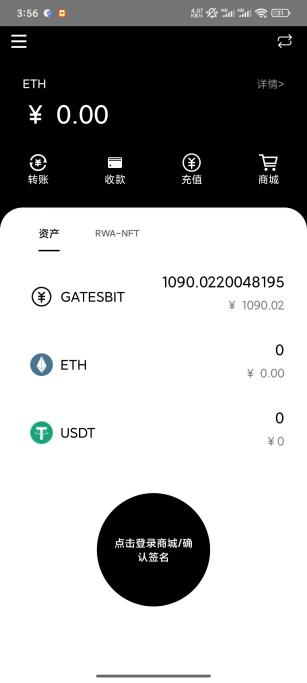
3. After entering the store main page, a new "Login to Store / Confirm Signing" button will appear. Tap the button to sign. A pop-up will confirm the signing was successful. Tap Confirm to return to the browser store.
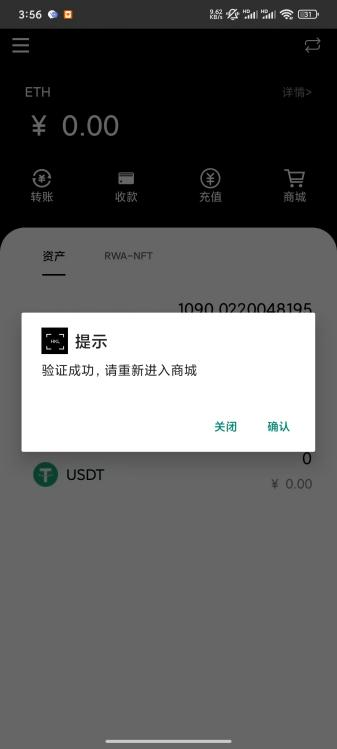
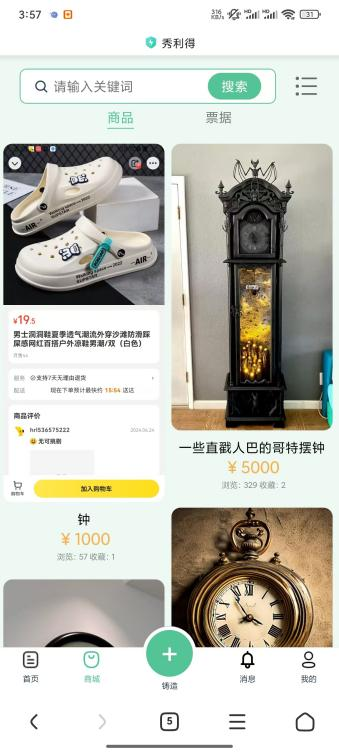
4. The browser store will verify whether the signing was successful. Upon success, you will be redirected to the store homepage.